How to Hide an App on iPhone, and What Stays Visible
Hiding an app takes three taps. Here's where it goes, who can still open it, and the places its name still shows up.

Hidlet is an iPhone app
Point your iPhone camera at the code to install. No account needed.
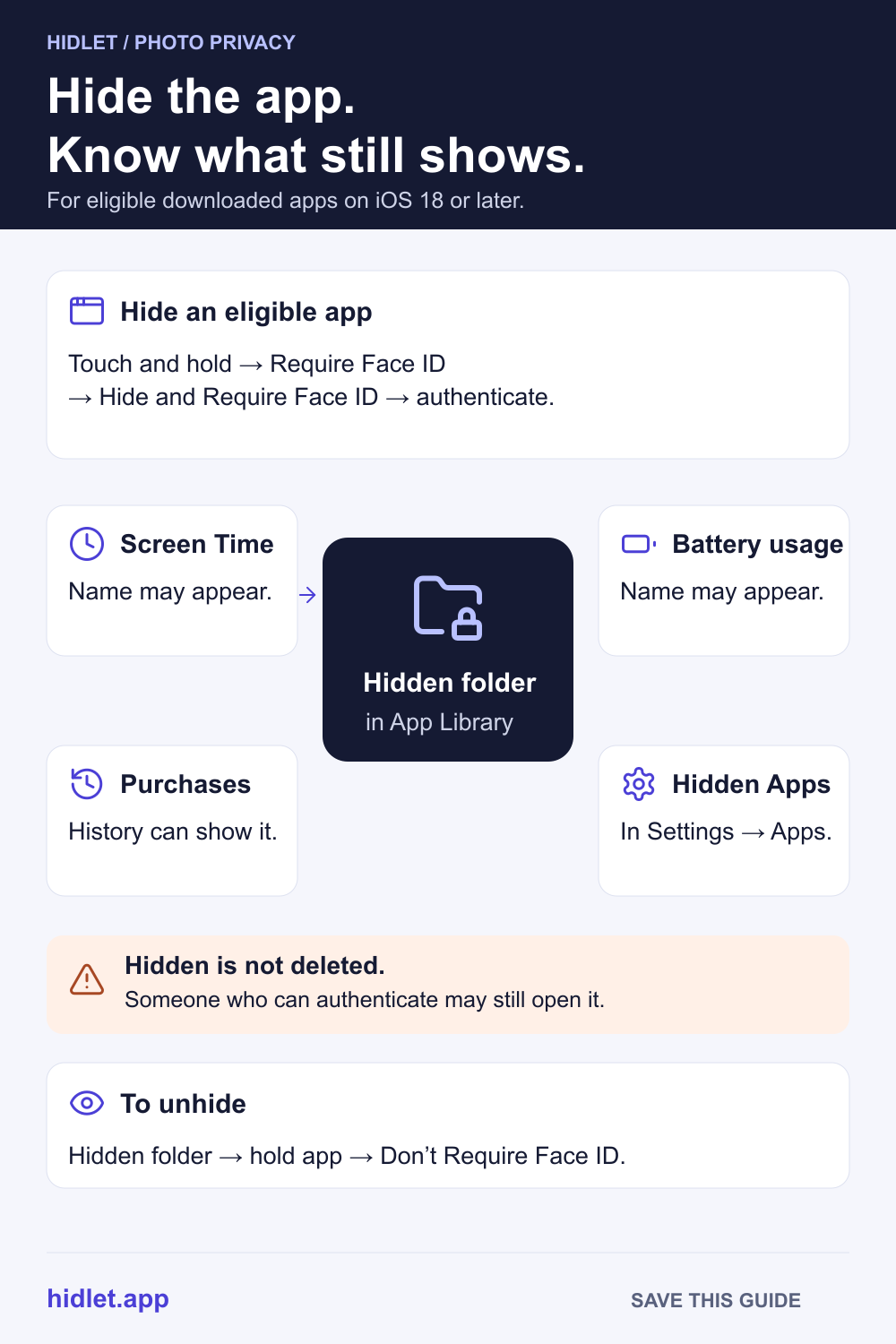
or text me the linkTouch and hold the app's icon, tap Require Face ID, then tap Hide and Require Face ID. The app leaves your Home Screen and moves to the Hidden folder at the bottom of App Library, which opens with Face ID, Touch ID or your passcode. Only apps you downloaded from the App Store can be hidden, and the app's name can still show in Screen Time, Battery and your App Store purchase history.
Someone is about to borrow your phone to look at a video, and there is one app you would rather they didn’t see. Or you just want a banking, dating or health app off your Home Screen. Since iOS 18, the iPhone can hide an app behind Face ID.
It works, with limits. This guide shows the steps, where the app goes, and what still gives it away.
How to hide an app
- Touch and hold the app’s icon on the Home Screen until the menu opens.
- Tap Require Face ID. With Touch ID the button says Require Touch ID, and with a passcode only it says Require Passcode.
- Tap Hide and Require Face ID, authenticate, then tap Hide App.
The app disappears from the Home Screen and moves to a Hidden folder at the bottom of App Library. Apple’s iOS 27 guide also says hiding removes the app from search results (the iOS 26 and 18 guides don’t mention this).
Which apps can you hide? Only the ones you downloaded from the App Store. Apple says apps that come installed on the iPhone can’t be hidden, and neither can your default web browser or your default app marketplace (available only in the EU). Children under 13 in a Family Sharing group can’t lock or hide apps. For ages 13 to 17, Apple says a parent can still see that the app was downloaded and how long it’s used, and can restrict it with Screen Time. Apple adds that these ages vary by country or region.
Open a hidden app
- Swipe left past all your Home Screen pages to App Library.
- Tap the Hidden folder at the bottom and authenticate with Face ID, Touch ID or your passcode.
- Tap the app and authenticate again.
You can also see the list at Settings → Apps → Hidden Apps.
Lock an app without hiding it
If you only want a lock, touch and hold the icon, tap Require Face ID, then choose Require Face ID again and authenticate. The icon stays on your Home Screen, and the app asks for Face ID, Touch ID or your passcode each time. Apple says opening a locked app doesn’t unlock it for good: it locks again after you quit it.
Some built-in apps can’t be locked. Apple’s iOS 26 guide lists Calculator, Camera, Clock, Contacts, Find My, Maps, Shortcuts and Settings.
Apple says what’s inside a locked app won’t show in places like notification previews, search, Siri suggestions or your call history.
What still shows
Hiding removes the icon. It doesn’t remove every trace. Apple says a hidden app’s name can still appear in:
- Screen Time.
- Battery usage by app. Apple’s Personal Safety guide gives the path as Settings → Battery → Battery Health & Charging.
- Your App Store purchase history.
- Settings → Apps → Hidden Apps, which needs authentication.
Apple lists only the places above for hidden apps. It doesn’t say whether other places, such as Siri suggestions, show them, so don’t assume they don’t.
Hiding is also only on this iPhone. Apple says the locked or hidden status doesn’t sync with iCloud. Apple doesn’t say whether the status survives a backup restore, so after you set up a new iPhone, check that the app is still hidden.
Who it protects you from
Apple frames the feature as peace of mind while you show someone something on your iPhone. It keeps out a person who doesn’t have a way to authenticate. Anyone who can authenticate with Face ID, Touch ID or your passcode can open the Hidden folder. How to Hide Photos From Someone Who Knows Your iPhone Passcode goes into what to do then.
Deleting is different. Apple says deleting an app removes it and its data from your iPhone. Hiding is the one to use when you want it kept.
Unhide or unlock an app
- Open the Hidden folder in App Library and authenticate.
- Touch and hold the app and tap Don’t Require Face ID.
- Authenticate. The app comes back to App Library.
To remove a lock from an app that isn’t hidden, touch and hold its icon, tap Don’t Require Face ID and authenticate.
Photos are the part you can’t hide
The Photos app is built in, so it can’t be hidden. Photos has its own Hidden album, which Apple says is locked by default and needs authentication to open (iOS 16 and later). You can switch off its visibility at Settings → Apps → Photos → Show Hidden Album. How to Hide Photos on iPhone has the steps. The album shares the weakness above: whoever can authenticate on your iPhone can open it.
A vault app for the photos themselves
A vault app is an app you can hide, and it keeps the photos out of Photos altogether. Hidlet is one. You draw a pattern on a 5×5 grid, and that pattern is the key to a vault, so your iPhone passcode opens nothing in it. Different patterns open different vaults, and the app never lists them. With Hidlet Pro you can change the app’s icon.
You can then hide the Hidlet app as well, as with any app you download. That’s two layers: the app is out of sight, and the photos inside need a pattern that isn’t your passcode. Hidlet is available on the App Store.
If someone is checking your phone
If you’re hiding an app because someone controls or monitors your iPhone, your safety matters more than any setting. Apple’s Personal Safety guide covers how to stay safe when someone may have access to your devices and accounts. This part is our advice, not Apple’s: if you’re in danger, contact local emergency services or a support line in your country.
Frequently asked questions
Can I hide the Photos app on iPhone?
No. Apple says apps that come installed on the iPhone can't be hidden. Only apps you download separately from the App Store can be.
Where do hidden apps go?
To the Hidden folder at the bottom of App Library. Opening that folder needs Face ID, Touch ID or your passcode.
Can someone who knows my passcode open a hidden app?
Yes. Apple says hiding keeps others from seeing or opening the app unless they have a way to authenticate your iPhone with Face ID, Touch ID or a passcode.
Does hiding an app delete it or its data?
No. The app stays installed. Deleting is a separate step, and Apple says it removes the app and its data from the iPhone.
Sources
Save this guide