Why Photos Others Send Show Up in Your iPhone Photos App
A photo someone texted you turns up in your Photos app. Here is where it comes from and the three switches that stop it.

Hidlet is an iPhone app
Point your iPhone camera at the code to install. No account needed.
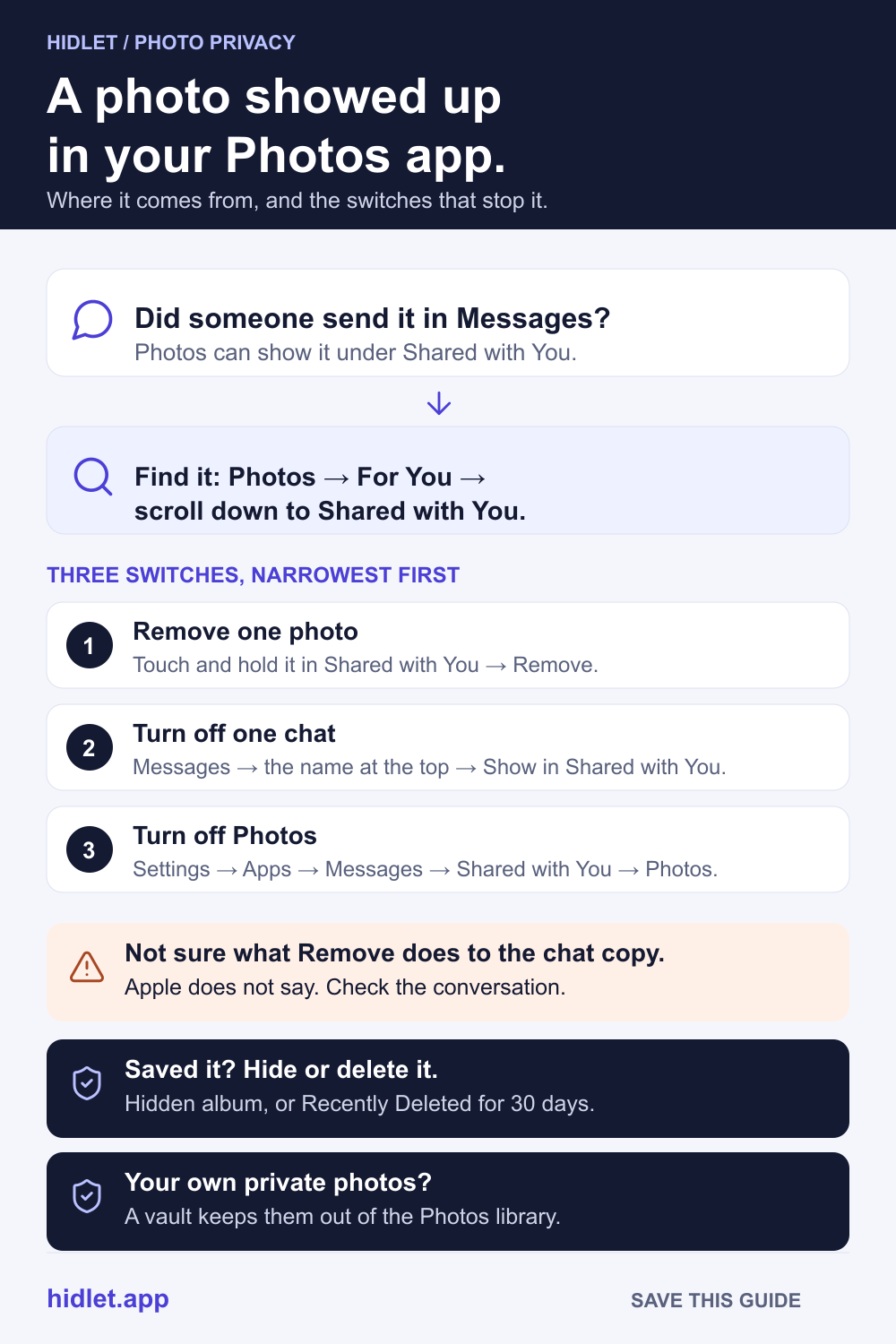
or text me the linkPhotos that people send you in Messages can appear in the Photos app under For You → Shared with You. To stop it, go to Settings → Apps → Messages → Shared with You and turn off Photos in the app list, or turn off Automatic Sharing for every app. To stop it for one chat, open the conversation, tap the name at the top and turn off Show in Shared with You. Apple says content from that chat still appears in the Messages thread.
A friend sends you a photo in Messages. A week later you open Photos to show someone a holiday picture, scroll down, and there it is again, on a screen anyone can see. Maybe it was a funny picture. Maybe it was something you never asked for.
The catch is that Photos doesn’t only show your own pictures. A feature called Shared with You lets Messages place what people send you into a section of the Photos app. This guide covers where that section is, the three ways to switch it off, and what none of them change.
What Shared with You does
Apple’s support page describes Shared with You as content that people share with you in Messages showing up in the matching app. For photos, that means the Photos app.
You find it here: open Photos, tap For You, then scroll down to Shared with You. When someone sends several photos at once, Apple says they appear as a collage you can swipe through.
Two things are worth knowing before you change anything:
- It is a display feature, and the pictures stay in the chat. Apple says that when you turn the feature off for a conversation, the content still appears in the Messages thread.
- Apple’s pages don’t spell out every detail. The Shared with You page says photos can be saved to your library, but it doesn’t say they are saved automatically. If you need to know whether a particular photo is in your library, open the Library tab and look for it, rather than assuming.
Who can see it
Anyone holding your unlocked iPhone can open Photos and look in For You, just as they can see your own pictures. This is our reading, not an Apple statement. If that worries you, Your Photo Widget or Notification Showed Something Private covers the other places an iPhone shows photos without being asked.
Stop it, three ways
Pick the narrowest switch that solves your problem.
- Remove one photo. In Photos → For You → Shared with You, touch and hold the thumbnail and tap Remove. Apple says the exact options vary by app. Apple doesn’t say what this does to the Messages copy, so check the chat afterwards.
- Turn it off for one conversation. In Messages, open the chat, tap the name at the top of the thread and turn off Show in Shared with You. On some versions you tap Info first. Photos from other people can still appear.
- Turn it off for Photos, or for everything. Go to Settings → Apps → Messages → Shared with You. Turn off Photos in the app list to stop it for the Photos app only, or turn off Automatic Sharing to stop it for every app on the list.
Apple’s Personal Safety guide lists the per-conversation and per-app switches, and notes that the Mac has matching options under Messages settings. Turn off Photos in the list; if it isn’t there on your iPhone, use Automatic Sharing or the per-chat switch.
If a photo is already in your library
Shared with You is one thing; a photo you have saved is another. If a photo is in your library and you don’t want it there, you have two choices:
- Hide it. Open the photo, tap the More button and tap Hide. It moves to the Hidden album (under Utilities in Collections), which opens with Face ID, Touch ID or your passcode. How to Hide Photos on iPhone shows each step.
- Delete it. Deleting moves it to Recently Deleted, where Apple says it stays for 30 days. How to Permanently Delete Photos From Your iPhone explains how to clear it earlier, and what copies stay behind in Messages.
Apple’s pages don’t say either action changes the copy in the Messages thread, and nothing here reaches the other person’s phone, so check the chat.
What Hidlet can and can’t protect
Turning off Shared with You controls where Messages shows photos. It doesn’t make anything private. The Hidden album is a screen you can open with your passcode, not a vault, as Is the iPhone Hidden Album Encrypted? explains.
Hidlet keeps your own photos outside the Photos library, in an encrypted vault opened by a pattern you draw. That means a photo in a vault can’t appear in For You or any other Photos section. It does not change what is already in a Messages conversation, and it can’t remove anything from another person’s phone.
If the photo you want to protect came from someone else, delete or move it from the thread too. Hidlet is available on the App Store, with a free plan and an optional Pro upgrade.
Labels can differ between iOS versions. If a switch isn’t where this guide says, search the Settings app for “Shared with You”.
Frequently asked questions
Does Shared with You send my photos to the other person?
Apple describes it as showing you content other people have sent you in Messages. It is a view of what you received, and Apple doesn't describe it as sending anything back.
If I remove a photo from Shared with You, is it deleted from Messages?
Apple says content still appears in the Messages conversation when you turn off Show in Shared with You for that chat. Apple doesn't say what Remove does to the Messages copy, so check the chat if it matters to you.
Can I stop it for one person only?
Yes. Open your conversation with them in Messages, tap their name at the top, and turn off Show in Shared with You. Photos from other people can still appear, as far as we can tell, because the switch is per conversation.
How do I get a photo out of my library once I have saved it?
Delete it in Photos. Apple says deleted photos stay in Recently Deleted for 30 days before they are removed for good, and Apple's pages don't say what happens to a copy in the Messages thread, so check it there.
Sources
Save this guide