What Hidden Data Is in an iPhone Photo? EXIF Explained
The picture is what you see. The file can also say where, when and on which phone. Here's what's in it and what you can take out.

Hidlet is an iPhone app
Point your iPhone camera at the code to install. No account needed.
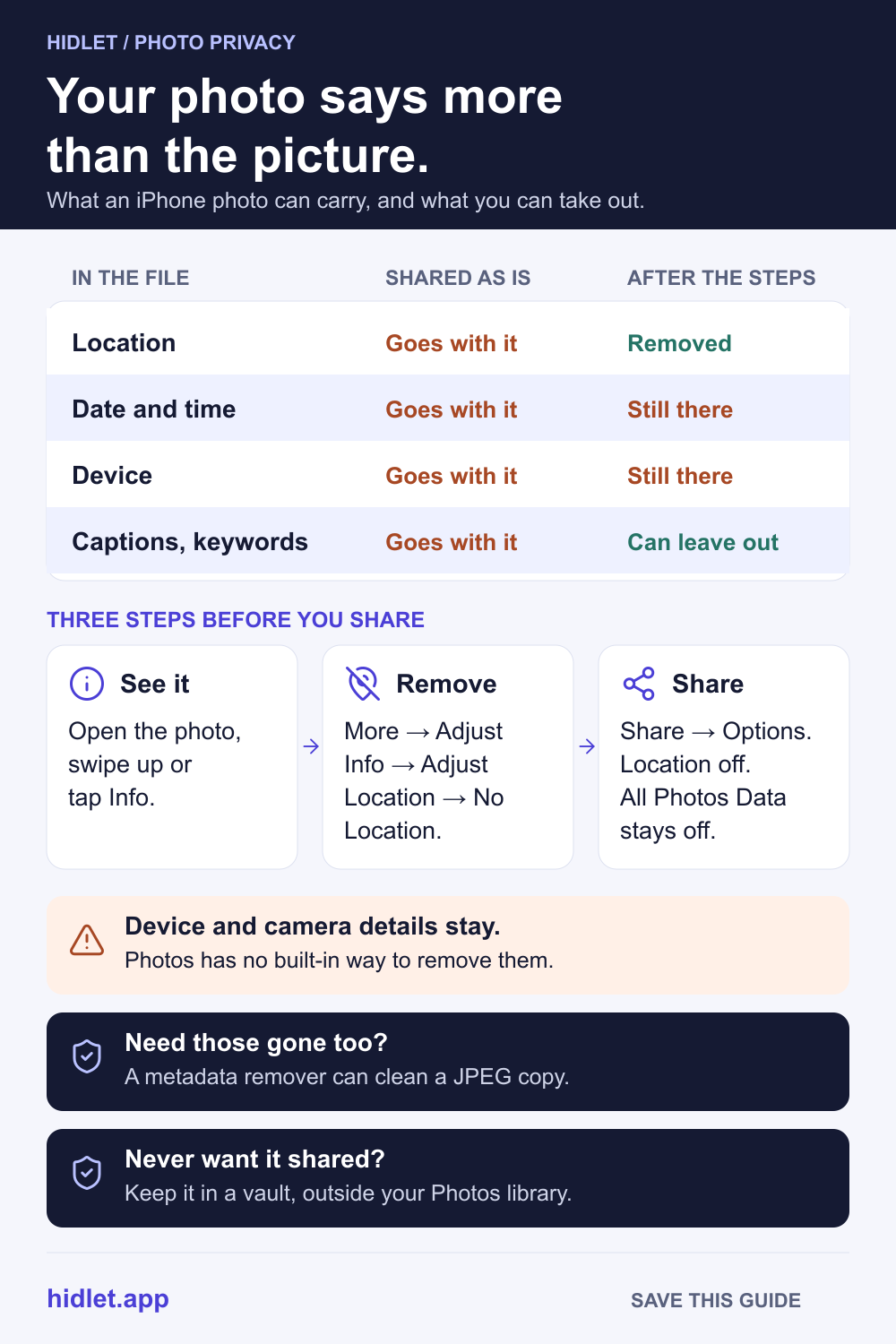
or text me the linkAn iPhone photo can carry hidden information called metadata, mostly in a format named Exif. Apple says it can include where and when the photo was taken, which device took it, camera details such as lens and shutter speed, and captions. Photos lets you remove the location and change the date, but Apple documents no way to remove the device or camera details.
You took a photo of something harmless, a sofa you’re selling or a view from a window, and you’re about to send it to someone you don’t know. What they see is the picture. What they get is a file, and the file can say more than the picture does: where it was taken, when, and on which phone.
That extra information is called metadata. Your iPhone lets you remove some of it, but not all of it. This guide explains what an iPhone photo carries, how to see it, what you can take out on the phone, and what still goes with the file when you share it.
What’s hidden in the file
Most of a photo’s hidden information follows a standard called Exif, published by two Japanese industry bodies, CIPA (cameras) and JEITA (electronics and IT). Exif defines tags for camera data, such as the date the photo was taken, the camera and lens, and the exposure settings, plus a separate set of GPS tags for the position. Two other formats can sit in the same file: XMP, Adobe’s format for embedding metadata, which is also an ISO standard, and IPTC Photo Metadata, which covers descriptions and copyright information.
You don’t need to know the formats to protect yourself. What matters is what kind of information an iPhone photo can carry, and whether you can do anything about it:
| What | Example | Can you remove it in Photos? |
|---|---|---|
| Location | The exact spot it was taken | Yes, with No Location, and Camera can stop recording it |
| Date and time | When it was taken | You can change it, not remove it |
| Device | Which iPhone took it | No built-in way documented |
| Camera details | Lens, shutter speed, file size | No built-in way documented |
| Captions and keywords | Words you added | Yes, you can edit or delete your own |
The Exif standard also recommends storing a small preview of the picture, a thumbnail, inside the file. Most apps never show it to you, but when there is one, it’s part of the file.
How to see it on your iPhone
- Open the photo in Photos.
- Swipe up, or tap the Info button.
Apple says the info can show the device that captured the photo, the date and time, the location, and camera metadata such as lens, shutter speed and file size. It also shows captions and, on iOS 27, keywords you’ve added. Swipe down or tap Info again to close it.
What you can change, and what you can’t
Location. Open the photo, tap the More button, then Adjust Info → Adjust Location → No Location. On iOS 26 there is no Adjust Info step: tap More, then Adjust Location. To change many photos at once, tap Select first and choose them. Our guide to removing location from a photo goes through this step by step, including how to stop new photos recording a place at all.
Date and time. The same menu has Adjust Date & Time. You can set a different date. Apple’s guide describes changing the date, not removing it. Revert puts back the original values.
Captions and keywords. These are words you added yourself, so you can edit or delete them in the info panel.
Device and camera details. Apple’s iPhone guides describe no way to remove which iPhone took the photo, or the lens and exposure details, from inside Photos. They stay in the file.
What goes with a photo when you share it
Apple says that sharing a photo or video includes its metadata, such as date and time, location, device and captions. That’s the default. Before you send, tap the Share button, then Options:
- Location. Turn it off to leave the place out. Apple’s iOS 26 guide and its Personal Safety guide both describe this switch. Apple’s iOS 27 Share page doesn’t list it, but we found it there in Options, under Include, on an iOS 27 iPhone simulator. If yours doesn’t show it, remove the location from the photo first, as above.
- Keywords (iOS 27). Turn it off so your keywords stay on your phone.
- All Photos Data. Keep it off. Apple says it shares the original file with its edit history and metadata. On iOS 27, Apple lists it for AirDrop only.
Notice what’s missing: there’s no switch for the device or the camera details. Turning off Location takes out the location. Apple doesn’t say it removes anything else.
The format can change too. When Settings → Camera → Formats is set to High Efficiency, iPhone saves photos as HEIF. Apple says that when you share with AirDrop, Messages or email, the photo might be converted to a more compatible format such as JPEG if the other device can’t read HEIF. Apple doesn’t say whether that changes the metadata, so don’t treat a converted copy as a clean one.
Three things people get wrong
“Turning off location cleans the photo.” It takes out one thing. The date, the device and the camera details still go with the file.
“The app I’m sending it with will strip it.” Some apps may, but Apple’s own default is that sharing includes the metadata. If it matters, take the location out yourself instead of relying on each app.
“Removing metadata removes every trace.” Not always. Apple says that on iOS 27.2 or later, most images created or edited with Apple Intelligence tools, such as Clean Up, Image Playground and Image Wand, include a SynthID hidden watermark. It isn’t one of the info fields, so a metadata remover isn’t built to take it out. And metadata was never the only clue: a street sign, a face or a number plate in the picture can say just as much. Our guide to blurring names, numbers and faces covers that part.
What to do before you send a photo to someone you don’t know
- Check it. Open the photo and swipe up to see what it carries.
- Remove the location. More → Adjust Info → Adjust Location → No Location.
- Stop it at the source. In Settings → Privacy & Security → Location Services → Camera, tap Never, so new photos taken with the Camera app don’t record where they were taken.
- Check Options when you share. Location off, Keywords off on iOS 27, All Photos Data off.
- Keep private photos out of the library. Every step above is about photos you mean to share. Photos you never want to share by mistake, or have read by another app with access to your library, are safer outside Photos. Our guide to whether other apps can see your hidden photos explains why. A vault like Hidlet keeps them in their own encrypted space, and its in-app camera saves photos straight into the open vault with location data removed, so they never reach your camera roll. Hidlet is available on the App Store.
What Hidlet can and can’t protect
Hidlet removes location from photos taken with its own camera. It doesn’t change photos already in your Photos library, and it can’t control what another app records or sends. For those, use the steps above.
If you need a file with the device and camera details gone too, try Hidlet’s photo metadata remover. It shows what a JPEG, PNG or WebP carries and gives you a clean copy, without uploading the photo. It doesn’t open HEIC files yet, so it works on JPEG copies.
Frequently asked questions
Can someone tell which iPhone took my photo?
They may. Apple says a photo's info shows the device that captured it, and that sharing a photo includes metadata such as date and time, location, device and captions.
Can I remove EXIF data on iPhone without an app?
Partly. In Photos you can remove the location and change the date and time. Apple's guides describe no built-in way to remove the device, lens or exposure details, so to remove the device and camera details too, you need a separate metadata remover.
Does sending a photo in Messages remove its metadata?
Don't assume it does. Apple says sharing a photo includes its metadata, such as date and time, location, device and captions. The Options button in the Share sheet lets you leave the location out.
Does removing metadata remove an Apple Intelligence watermark?
Don't count on it. Apple says that on iOS 27.2 or later, most images created or edited with Apple Intelligence tools include a SynthID hidden watermark. Apple calls it a hidden watermark. It isn't one of the info fields, so a metadata remover isn't built to take it out.
Sources
- Apple iPhone User Guide — See photo and video information (iOS 27)
- Apple iPhone User Guide — See photo and video information (iOS 26)
- Apple iPhone User Guide — Share photos and videos (iOS 27)
- Apple iPhone User Guide — Share photos and videos (iOS 26)
- Apple Personal Safety guide — Manage location metadata in Photos
- Apple Support — Using HEIF or HEVC media on Apple devices
- Apple iPhone User Guide — Add keywords to photos and videos (iOS 27)
- Apple iPhone User Guide — Clean up, extend, and reframe photos (iOS 27)
- Apple iPhone User Guide — Create original images with Image Playground (iOS 27)
- Apple iPhone User Guide — Use Image Wand with Apple Intelligence (iOS 27)
- CIPA DC-008-2012 — Exchangeable image file format (Exif 2.3)
- Adobe — XMP documentation
- IPTC — Photo Metadata standard
Save this guide