How to Blur Names, Numbers and Faces in a Photo on iPhone
Photos has no blur button, and a cover you draw can be undone in your library. How to hide a name or number so it stays hidden.

Hidlet is an iPhone app
Point your iPhone camera at the code to install. No account needed.
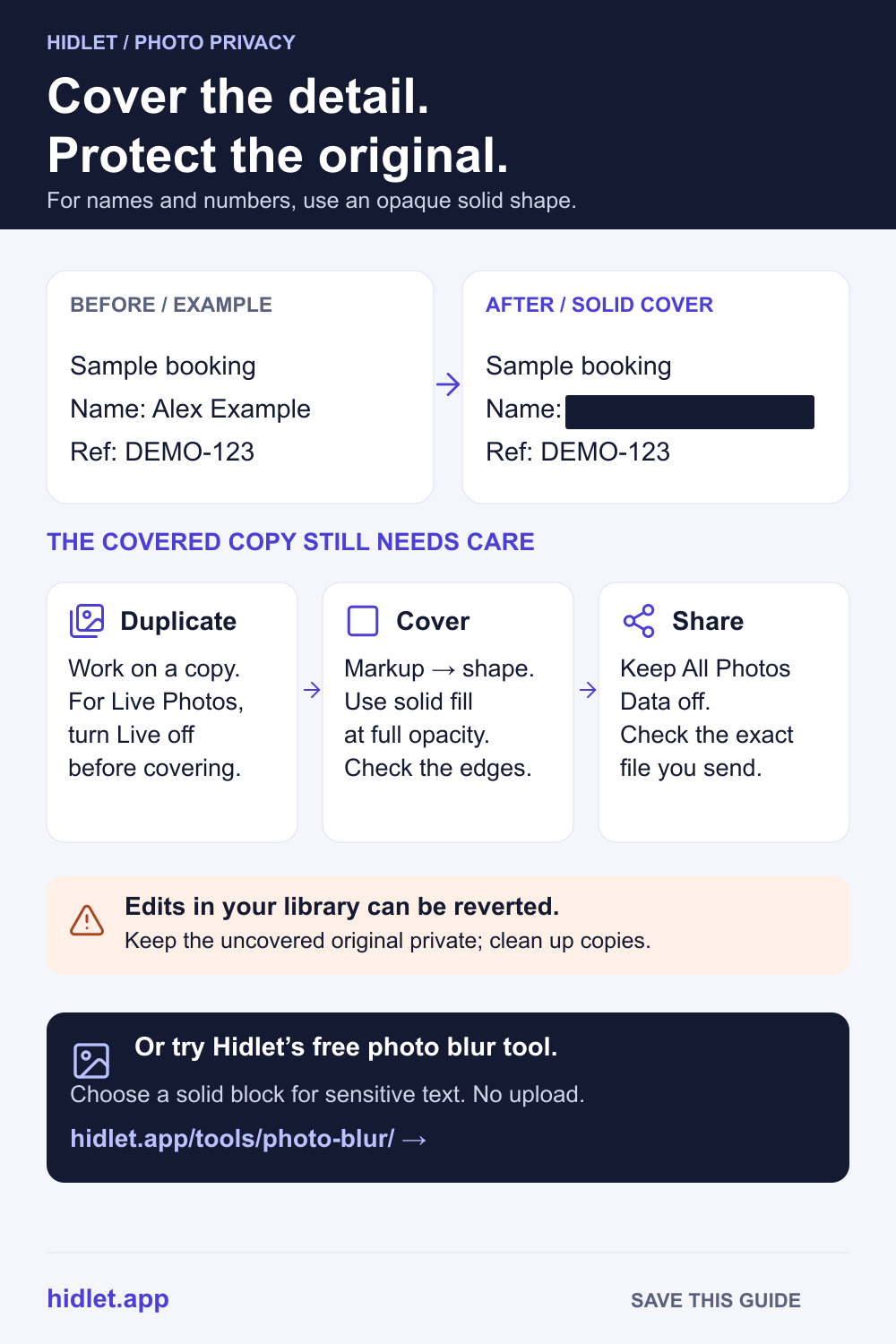
or text me the linkPhotos has no blur tool. To hide a name, number or face, open the photo, tap Edit, then Markup, add a shape with Add Shape and give it a solid fill. The cover is an edit that can be undone in your own library, so after you share the covered copy, delete it and keep the original private.
You are about to send a screenshot: a booking with your address on it, a chat with someone’s phone number, a photo of your child in a school badge, a car with its plate in view. You want one part hidden before it goes. The catch is that iPhone has no blur button, and the cover you draw is an edit, not a deletion. The uncovered photo stays in your library underneath it, and some ways of sharing can send it along.
This guide covers the tools iPhone does have, how to cover a detail so it stays covered, and what to do with both copies afterwards.
What iPhone gives you
The Photos app has no blur or pixelate tool that Apple documents. There are two ways to cover something:
| Tool | Best for | What you need | Can it be undone in your library? |
|---|---|---|---|
| Markup, a shape with a solid fill | Names, numbers, addresses, card digits | Any iPhone | Yes |
| Markup, pen or marker | Quick scribbles | Any iPhone | Yes |
| Clean Up | Possibly a face in a photo | An iPhone with Apple Intelligence | Yes |
Markup is the drawing layer in Photos and in screenshots. Its toolbar has Pen, Mono line, Marker, Eraser, Lasso, Ruler and Pencil, plus an Add button for text, stickers, signatures and shapes. Apple doesn’t list a blur tool in any of it.
Clean Up is an Apple Intelligence tool built to remove distracting objects from a photo. Apple’s iOS 18 and iOS 26 guides say that if you brush over a person’s face, the face may become blurred with a pixelated effect. The iOS 27 guide no longer mentions faces, so check the result every time. Clean Up needs an iPhone 15 Pro, iPhone 15 Pro Max, or an iPhone 16 model or later; it isn’t available in every language or region, and usage limits may apply.
Cover text and numbers with a solid shape
A solid box is the safest cover for anything you can read. Researchers at UC San Diego recovered text hidden with a mosaic or a blur, including bank account numbers, email addresses and whole sentences, and concluded that a solid bar is the best choice for text in an image. They noted that redacted phone numbers and card numbers are common online.
- Work on a copy. Open the photo, tap the More button, then tap Duplicate. Apple says the copy appears next to the original, which stays as it was.
- Open Markup. Open the copy, tap Edit, then tap the Markup button. For a screenshot you just took, tap the Markup button on the full-screen preview; if you see a thumbnail in the lower-left corner instead, tap it first.
- Add a box. Tap the Add button, tap Add Shape, then tap the box shape.
- Make it solid. With the shape selected, use the options in the Markup toolbar to set a fill colour and full opacity. A see-through box isn’t a cover.
- Place it. Drag the box over the detail, and drag the dots on its edge to resize it. Cover a little more than the text itself.
- Save. Tap Done until you’re back at the photo.
Avoid the Marker for this. Apple lets you change the opacity of the pen, marker and pencil with a slider, and a stroke that isn’t fully opaque can leave the text readable underneath.
Pixelate a face with Clean Up
If your iPhone has Apple Intelligence, you can try Clean Up on a face:
- Open the photo and tap Edit.
- Tap Tools, then Clean Up. On iOS 26 and earlier, Clean Up is directly under Edit.
- Brush over the face. Pinch to zoom in if it’s small.
- Save. If you’re using High Quality processing, tap Clean Up. Then tap Done, and Done again.
Check the result before you share it. If the face isn’t pixelated, cover it with a solid shape in Markup instead. A 2016 study trained software on photos of a known group of people, then identified their pixelated or blurred faces far more often than chance: 57% of YouTube-blurred faces among 40 people, against 2.5% by guessing. A solid shape is the safer choice for anyone at real risk. Clothing, a person’s pose or the setting can identify someone too, as NIST points out.
What a cover doesn’t remove
This is where most people get caught out.
- The uncovered photo is still in your library. Apple says that after saving an edit you can go back to the original with More → Revert to Original, and Clean Up has its own Reset. That applies to the covered copy too. With iCloud Photos on, Apple says edits are saved across all your devices. Anyone who can open your Photos can undo the cover.
- All Photos Data sends the original. In the Share sheet, Options → All Photos Data shares the original file with its edit history and metadata, and Apple says the person can view and modify the current version. Apple lists it for AirDrop only. Keep it off.
- Export Unmodified Original does what it says. Apple says this choice exports the unedited version of an edited photo, so your cover won’t be on it.
- Live Photos have more than one frame. Apple’s Mac guide says markup changes affect only the still image of a Live Photo. Apple’s iPhone guide doesn’t say either way, so turn Live off first: tap Edit, tap the Live Photo button, then tap Live. NIST also warns that blurred or pixelated video can sometimes be de-blurred by combining frames.
- A shared library is shared. In an iCloud Shared Photo Library, every member can view, edit and delete the photos in it, and Apple says edits are seen by everyone. Your cover is only an edit, so other members can see and change it.
- The rest of the file still talks. Sharing includes metadata such as date, time, location and device. Our guide to removing location from a photo covers that part, and what hidden data is in an iPhone photo covers the rest.
If you’d rather have a file with nothing underneath, our photo blur tool draws a new image with the covered areas replaced by pixels, blur or a solid block. It runs in your browser, so the photo isn’t uploaded, and the copy it gives you has no location, date or camera details.
Share the copy, then clean up both
- Share the covered copy the usual way. If you use AirDrop, tap Options first and check that All Photos Data is off.
- Delete the covered copy. It has done its job, and anyone with your phone could revert it.
- Decide what the original is for. If you don’t need it, delete it as well. Apple says deleted photos stay in Recently Deleted for 30 days. To remove them sooner, tap Collections, tap Recently Deleted (below Utilities), tap View Album and unlock it, tap Select, choose the photos, tap the More button, then tap Delete.
- If you need to keep it, keep it out of the places other people look. Hiding it moves it to the Hidden collection, which is locked by default with Face ID, Touch ID or your passcode; our guide on how to hide photos on iPhone covers what that does and doesn’t stop. For papers like a passport or bank card, see where to store sensitive documents and passport and ID photos on your iPhone.
- For originals that must stay private, a vault keeps them outside your photo library. Hidlet stores photos in encrypted vaults that open only with your pattern or recovery phrase, and they never appear in Photos or a shared library. After importing a photo, delete the copy in Photos and empty it from Recently Deleted. Hidlet is available on the App Store.
What Hidlet can and can’t protect
Hidlet doesn’t edit photos, so it can’t blur or cover anything for you. Use Markup, Clean Up or our blur tool for that. What it can do is keep the uncovered original out of your library, where a Revert to Original or a shared library could expose it. It can’t change a copy you’ve already sent.
Frequently asked questions
Does iPhone have a blur tool for photos?
Not one Apple documents. Markup has pens, a marker and shapes, but no blur or pixelate tool. Apple's iOS 18 and iOS 26 guides say a face you brush over with Clean Up may become pixelated, but the iOS 27 guide doesn't mention it, and Clean Up is built to remove distractions, not to hide details.
Can someone unblur a pixelated or blurred photo?
Sometimes. Researchers at UC San Diego recovered text hidden by mosaics and blurring, even from heavily compressed images, and concluded that a solid bar is the best choice for text. In a separate 2016 study, software trained on photos of a known group of people identified their pixelated or blurred faces far more often than chance.
Can the person I send it to undo my Markup?
Apple says turning on All Photos Data when you share with AirDrop sends the original file with its edit history, and the person can view and change the current version. Keep that switch off. In an iCloud Shared Photo Library, every member can view, edit and delete the photos in it.
If I delete a photo, is it gone at once?
No. Apple says deleted photos stay in Recently Deleted for 30 days. To remove one sooner, open Recently Deleted, select the photo, tap the More button, then tap Delete.
Sources
- Apple iPhone User Guide — Clean up, extend, and reframe photos (iOS 27)
- Apple iPhone User Guide — Use Apple Intelligence in Photos (iOS 26)
- Apple iPhone User Guide — Add text, shapes, stickers, and more with Markup on iPhone
- Apple iPhone User Guide — Draw and handwrite with Markup
- Apple iPhone User Guide — Take a screenshot
- Apple iPhone User Guide — Undo and revert photo edits
- Apple iPhone User Guide — Share photos and videos
- Apple iPhone User Guide — Import and export photos and videos
- Apple iPhone User Guide — Duplicate and copy photos and videos
- Apple iPhone User Guide — Edit Live Photos
- Apple Photos User Guide for Mac — Change a Live Photo
- Apple iPhone User Guide — Delete or hide photos and videos
- Apple iPhone User Guide — Set up or join an iCloud Shared Photo Library
- Apple iPhone User Guide — Use iCloud Shared Photo Library
- Hill, Zhou, Saul, Shacham — On the (In)effectiveness of Mosaicing and Blurring as Tools for Document Redaction (PoPETs 2016)
- McPherson, Shokri, Shmatikov — Defeating Image Obfuscation with Deep Learning (arXiv, 2016)
- NIST IR 8053 — De-Identification of Personal Information
Save this guide