iPhone Safety Check: Cut Off Someone's Access to Your Photos
A partner or ex can still see more of your iPhone than you think. Apple has a tool for it, and a catch.

Hidlet is an iPhone app
Point your iPhone camera at the code to install. No account needed.
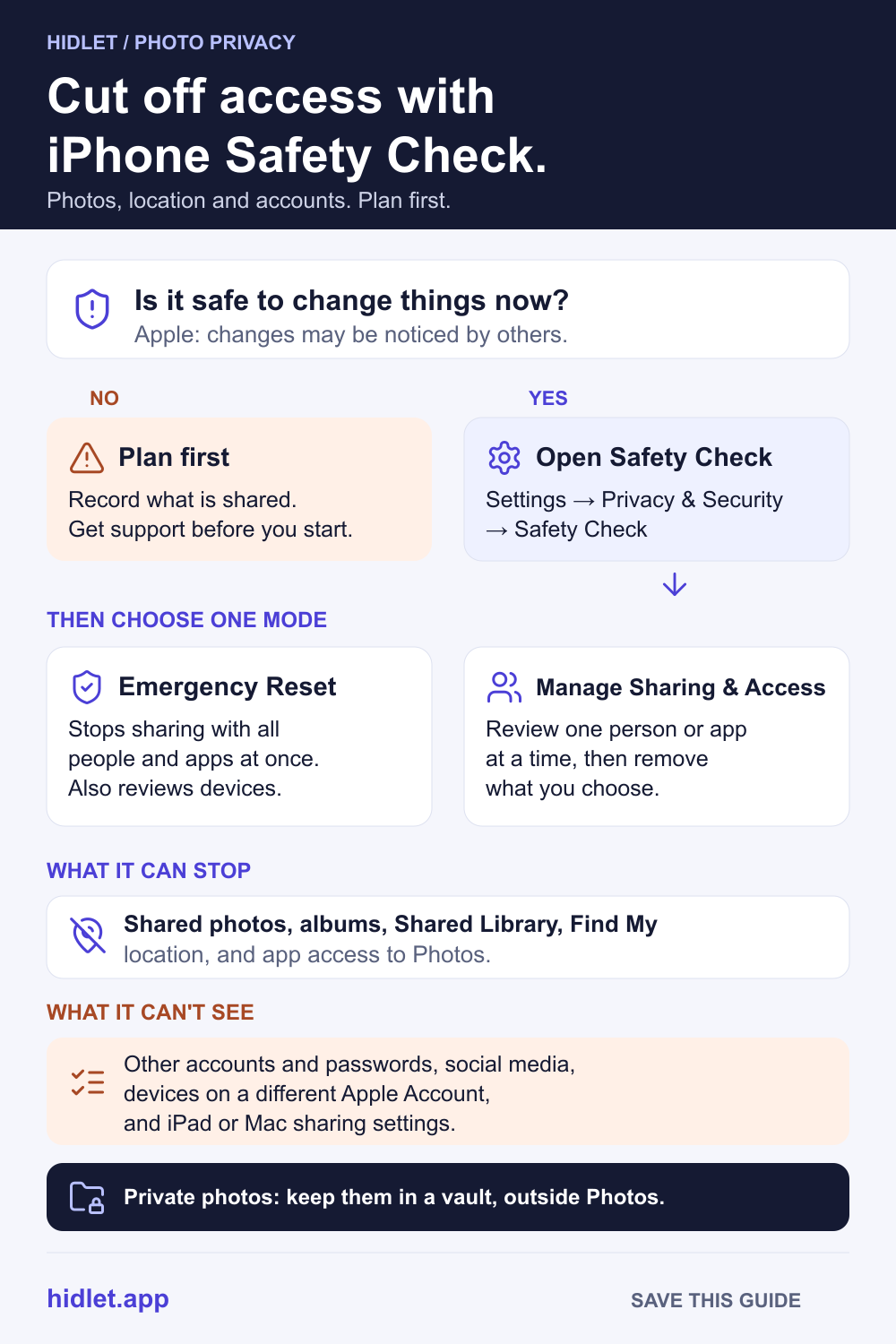
or text me the linkOpen Settings → Privacy & Security → Safety Check (iOS 16 or later). Manage Sharing & Access lets you remove one person or app at a time, and Emergency Reset stops all sharing at once, including shared photos, albums and your Shared Library. Apple warns that changes may be noticed by others, so think about your safety first.
Your relationship ended, or stopped feeling safe, and you realise how much of your phone someone else can still see: a shared album, your location, a Shared Library, a device signed in to your Apple Account. Apple has one tool that reviews most of it in one place. It is called Safety Check, and it comes with a catch you should know before you tap anything.
This guide covers where Safety Check is, what each mode does, what it can’t touch, what the other person may notice, and where your private photos can live outside all of it. It protects your own information. It is not a way to watch anyone else.
Before you touch anything: plan for your safety
Apple’s own advice comes first on every Safety Check page: plan for your safety before you make changes or delete information. Apple also says changes you make to sharing or access may be noticed by others, and that when you change a sharing relationship you may lose access to tools and information that could be important to you.
So take a minute with these questions:
- Who might notice? Stopping a location share can be visible. Apple says people you shared with may notice you stopped.
- Do you need a record first? Apple suggests you may want to record suspicious activity, with screenshots, before you change anything.
- Is this the right moment? If a change could put you at risk, get support first. Apple’s Personal Safety guide and local support services can help you plan.
If you are in danger now, contact your local emergency services.
Where Safety Check is, and what you need
Safety Check is in Settings → Privacy & Security → Safety Check (scroll down if you don’t see it). Apple says it needs an iPhone with iOS 16 or later and an Apple Account that uses two-factor authentication, and that you must be signed in to that account.
In the top-right corner of every Safety Check screen is Quick Exit. Apple says it closes the Settings app at once and returns you to the Home Screen, and any changes you already made are saved. Apple doesn’t say it clears any other trace, so don’t count on that.
Two modes, two different jobs
Emergency Reset. Apple describes this as an immediate and universal reset of sharing for all people and apps. It also lets you review your emergency contacts, the devices connected to your Apple Account and the phone numbers used to verify your identity, and change your Apple Account password.
Manage Sharing & Access. This is the slower, more careful route. You review sharing person by person (People) or by type of information (Information), and the same for apps. Apple says your changes are saved as you go. From here you can also review and remove devices on your Apple Account, update your verification phone numbers and password, update your passcode or Face ID or Touch ID, and add or update emergency contacts.
Which one? If you need everything to stop now, Emergency Reset is built for that. If you are not in a hurry and want to see exactly who has what, Manage Sharing & Access shows you before you cut.
What Safety Check can stop
Apple’s Safety Check FAQ lists the Apple features whose sharing with other people it can review or stop: Activity, Check In, Health, Home, shared calendars, shared items and shared location in Find My, shared Maps arrival times, shared Notes, shared Passwords and shared photos. Apple’s list says shared photos include a Shared Library and Shared Albums.
For apps made by other companies, it can turn off access to things like your Photos, Camera, Microphone, Contacts, Location Services, Bluetooth and Local Network.
For photos, that means two things:
- People. Someone in your iCloud Shared Photo Library or a shared album can be cut off. For the album steps and what a removed person keeps, see My Ex Still Has Access to Our Shared Album on iPhone.
- Apps. An app you gave Photos access to can lose it. For the difference between full access and the photo picker, see Can Other Apps See Your Hidden Photos on iPhone?.
What Safety Check can’t do
Apple says Safety Check can’t review or change:
- Non-Apple accounts and passwords.
- Social media sharing.
- Devices where you’re signed in to a different Apple Account.
- An iPad or Mac with information sharing settings turned on for other apps.
Apple’s Personal Safety guide adds more to check by hand:
- Other accounts. Change passwords and look at email, phone and messaging accounts for forwarding you didn’t set up.
- Apps you don’t recognise. Review your installed apps and delete the ones you didn’t install.
- A shared mobile plan. Apple says other people on the plan may have access to your location, call and messaging activity or billing details. Ask your carrier about an access PIN.
- Home. Apple says that if you remove yourself from a home, the person who manages it can still use accessories such as cameras.
- Family Sharing. Apple says the organiser may be able to see the purchases you’ve made and change a child’s device settings. To leave a group, go to Settings, tap your name, and open Family Sharing settings.
If Screen Time restrictions or a device-management profile are on your iPhone, Apple says you can still use Safety Check but some options may not be available. With Stolen Device Protection on, Apple says it may work a little differently.
What they may notice
Here is the honest part. Apple does not say the other person is never told.
- Location. Apple says when you stop sharing your location, people you shared with may notice. On earlier operating systems, Apple says they may get a notification in Messages that you stopped sharing. Assume they may notice.
- Shared Library. Apple says if you remove someone from an iCloud Shared Photo Library they receive a notification and can copy everything in the Shared Library to their own Personal Library. Deleting a Shared Library notifies all participants.
- Shared Albums. Apple’s page doesn’t say whether a removed subscriber is told. Assume they may notice that the album has gone.
- Your Apple Account. Apple notifies you by email, text or push notification when changes are made to your account. Apple’s pages don’t say what someone sees when you remove their device.
Nothing Safety Check does reaches back and removes what a person already copied. Photos saved to their own library stay there.
What to do
- Decide whether it is safe to change things now. If not, plan first and get support.
- Record what you need. Take screenshots of what is shared and who has it. Apple suggests this before you remove a device.
- Open Settings → Privacy & Security → Safety Check. Use Manage Sharing & Access to go person by person, or Emergency Reset to stop everything.
- Check your Apple Account. In Settings, tap your name and scroll to your devices. Remove any you don’t recognise (tap the device, then Remove from Account). Then go to Sign-in & Security and change your password.
- Verify. Apple suggests tapping Back, or quitting and reopening Safety Check, to confirm your changes took effect.
- Work through what Safety Check can’t see. Other accounts, your mobile plan, Family Sharing, Home.
- Move the photos that matter out of shared spaces. A vault keeps them outside your photo library.
Apple’s Get safe guide also covers Lockdown Mode and restoring an iPhone to factory settings, which removes apps installed without your knowledge and resets your privacy settings.
What Hidlet can and can’t protect
Hidlet is an iPhone app that keeps photos, videos and files in encrypted vaults. Photos in a vault live in the app’s own storage, not in your photo library, so a Shared Album, a Shared Library or an app with Photos access doesn’t contain them. You open a vault with a pattern you draw, which is separate from your iPhone passcode, and the app locks the moment you leave the app. On current iOS versions, screenshots and screen recordings show an empty screen instead of your photos.
It can’t do the rest of this guide’s work. It doesn’t change who can see your location, it doesn’t sign anyone out of your Apple Account, and it can’t stop a person who forces you to unlock it. Hidlet has a duress vault (a Pro feature) for that case: drawing its pattern opens a harmless vault and, in the background, removes the other vaults’ files and keys from that phone. The encrypted backup in your own iCloud stays, so the vaults can be restored later with their patterns or recovery phrases. If you restore on a new iPhone, a pattern restore needs iCloud Keychain on, and the recovery phrase works otherwise. Hidlet is available on the App Store.
Or try Hidlet’s photo metadata remover before you send a photo: it checks a JPEG, PNG or WebP and gives you a copy with metadata, including location, removed. Photos you send can carry the place they were taken in their metadata. HEIC photos need converting to JPEG first, because the tool doesn’t accept HEIC.
If you need help
Apple’s Personal Safety guide points to its Here to Help page for organisations that support people dealing with harassment, domestic violence or stalking. Local helplines and law enforcement can help you plan, and if you think a tracker you don’t recognise is following you, see Apple’s “Detect unwanted trackers” page. If you feel unsafe, contact your local emergency services.
Frequently asked questions
Will they know if I use Safety Check?
Assume they may find out. Apple says changes you make to sharing or access may be noticed by others, and that when you stop sharing your location people may notice. Plan for that before you start.
What is the difference between Emergency Reset and Manage Sharing & Access?
Apple describes Emergency Reset as an immediate, universal reset of sharing for all people and apps. Manage Sharing & Access lets you review and change sharing for individual people and apps.
Does Safety Check work on iPad or Mac?
Apple describes it as a Settings feature on iPhone with iOS 16 or later. For an iPad or Mac, Apple's Personal Safety guide has manual checklists instead.
What can't Safety Check change?
Apple says it can't review or change non-Apple accounts and passwords, social media sharing, devices signed in to a different Apple Account, or an iPad or Mac with sharing settings turned on for other apps.
Does Safety Check delete photos they already saved?
Apple's pages don't say it does, and it doesn't reach into someone else's library. Assume that anything a person already saved or downloaded stays with them.
Sources
- Apple Personal Safety guide — Safety Check for iPhone
- Apple Personal Safety guide — Safety Check FAQ
- Apple Personal Safety guide — Safety considerations
- Apple Personal Safety guide — Manage photos sharing settings
- Apple Personal Safety guide — Find My and location sharing
- Apple Personal Safety guide — Keep your Apple Account secure
- Apple Personal Safety guide — Get safe guide
- Apple Personal Safety guide — Additional safety steps
Save this guide