How to Turn Off iCloud Photos Without Losing Your Photos
Your photos live in two places. Switch off the wrong one, or in the wrong order, and your iPhone keeps only the small copies.

Hidlet is an iPhone app
Point your iPhone camera at the code to install. No account needed.
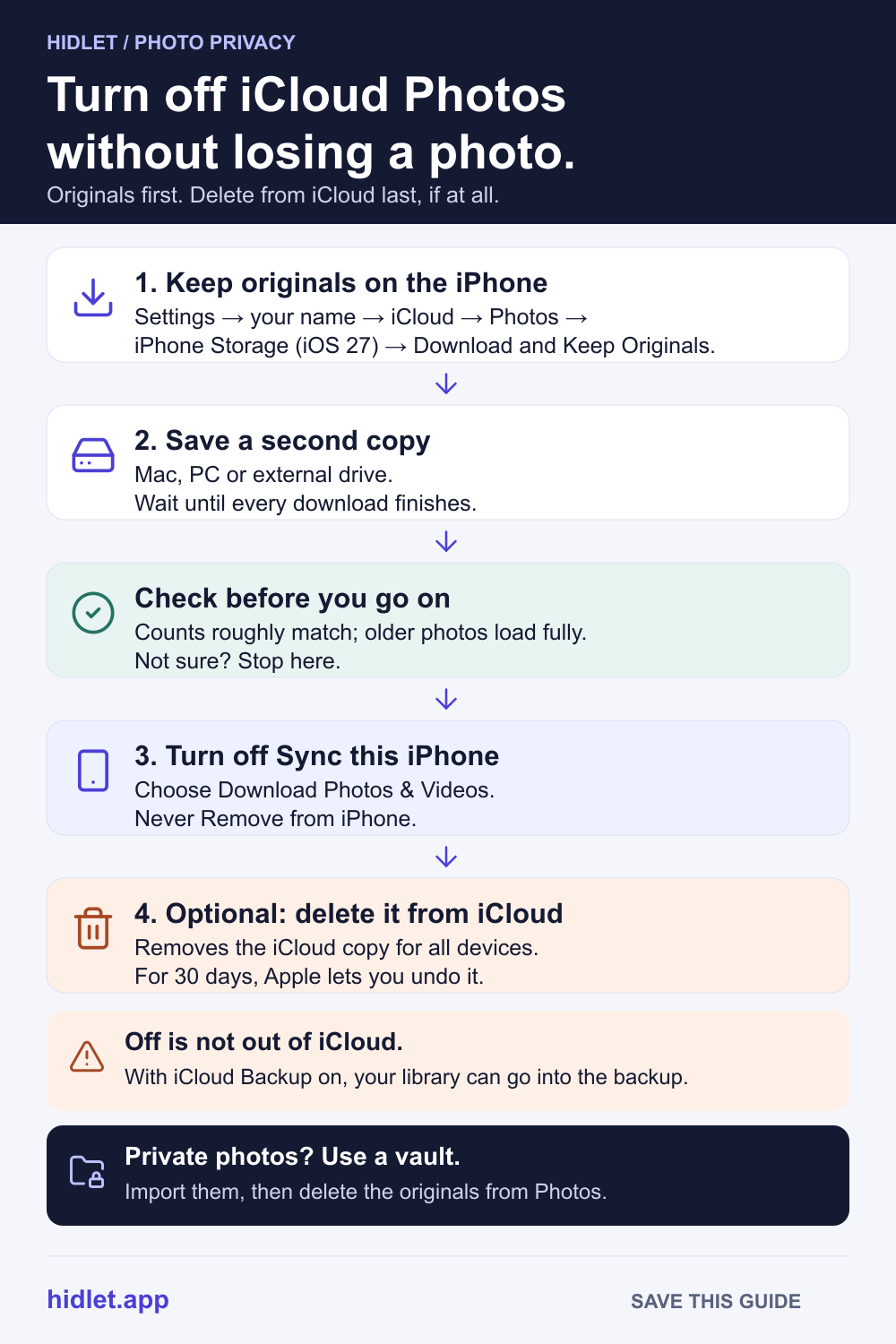
or text me the linkBefore you turn it off, set Photos to Download and Keep Originals and let the download finish. Then go to Settings → your name → iCloud → Photos, turn off Sync this iPhone and choose Download Photos & Videos, never Remove from iPhone. That stops syncing on this iPhone only. Deleting your library from iCloud is a separate step, with 30 days to undo it.
You want your photos out of iCloud. Maybe the storage plan costs too much, maybe you don’t like a copy of every picture sitting on someone else’s server, or maybe you just want the iPhone to stop syncing with an old iPad. The switch is easy to find. The worry is what happens to your photos when you flip it.
The catch is a default most people never chose. With iCloud Photos on, your iPhone usually keeps smaller, storage-saving versions of your photos, and the full-size originals live only in iCloud. Turn it off the wrong way and you keep the small copies. Delete the iCloud library too early and the originals go after 30 days. This guide covers what the switch really does, how to check where your originals are, the safe order to turn it off, and what changes afterwards.
What turning off iCloud Photos actually does
There are two different switches, and they do different things.
Sync this iPhone is the one most people mean. It’s in Settings → your name → iCloud → Photos (on iOS 15 and earlier, the switch was called iCloud Photos). Apple says that when you turn it off, uploads of new photos, edits and deletions stop syncing between that device and your other devices. Your library in iCloud stays where it is, and your iPad or Mac keeps syncing with it.
Deleting your library from iCloud is separate, and it affects every device. Apple says your photos and videos are deleted from iCloud 30 days after you stop using the service, and that you can select Undo Delete before then. That’s the step that empties iCloud and frees the space, and it’s the one to do last, if at all.
If your photos show up on a shared family iPad and that’s the problem, you may only need the first switch on that one device. My Private Photos Show Up on the Family iPad or Mac covers that case.
The catch: your iPhone may only have small copies
When iCloud Photos is on, Photos has two storage settings:
- Optimize iPhone Storage. Apple says the full-resolution photos and videos are stored in iCloud, with storage-saving versions kept on your iPhone. It’s on by default.
- Download and Keep Originals. Every original stays on the iPhone as well as in iCloud.
So if you never changed this setting, your iPhone may not hold your originals at all. When you turn off Sync this iPhone, Apple gives you two choices: Download Photos & Videos keeps a copy on the iPhone, and Remove from iPhone takes them off without one. Apple warns that if you don’t download a copy, optimized photos are not the original resolution.
The fix is to get the originals onto the iPhone first. That needs space: Apple’s first step is to download your originals and make sure your device has enough storage for them. A big library may not fit, and then the safe route is a computer or an external drive.
How to turn it off without losing anything
Do these in order. Stop after step 4 if you only want this iPhone to stop syncing.
- Keep originals on the iPhone. Go to Settings → your name → iCloud → Photos. On iOS 27, tap iPhone Storage, then Download and Keep Originals. On iOS 26 or iOS 18, Download and Keep Originals is right on the Photos screen. Leave the iPhone on Wi-Fi and power until Photos stops downloading. A large library can take a long time.
- Make a second copy somewhere else. On a Mac, open Photos, go to Photos → Settings → iCloud and choose Download Originals to this Mac. On iCloud.com, you can select up to 1,000 photos at a time and download them as Unmodified Originals. On the iPhone itself, you can select photos, tap the Share button, tap Export Unmodified Originals, then choose an external drive in Files and tap Save.
- Check before you go on. Compare roughly how many photos and videos the iPhone has with your copy. Open a few older photos. If one takes a moment to load at full size, it was still in iCloud, so give the download longer.
- Turn off Sync this iPhone. In Settings → your name → iCloud → Photos, turn it off. When asked, choose Download Photos & Videos. Never choose Remove from iPhone unless every original is safely somewhere else.
- Delete the iCloud copy, only if you want it gone. If you own a Shared Library, Apple says to delete it first. Then, on iOS 18 or later, go to Settings → your name → iCloud → Storage → iCloud Photos and tap Turn Off and Delete Photos. On iOS 17 or earlier, it’s Manage Account Storage and Turn Off & Delete from iCloud. iCloud keeps the library for 30 days. If you change your mind within that time, Apple says you can select Undo Delete.
Want your photos somewhere else instead? Apple’s Request to transfer a copy of your data at privacy.apple.com can send a copy to Google Photos without removing anything from iCloud. Apple says most transfers take three to seven days and some up to 30. It needs two-factor authentication and doesn’t work while Advanced Data Protection is on. Only the latest edit of each photo is sent, and shared albums, smart albums, Live Photos and some metadata aren’t transferred.
What changes after you turn it off
Your iPhone keeps working as before. Some things that rely on iCloud Photos stop.
| What | With iCloud Photos off |
|---|---|
| Other devices | Stop getting new photos, edits and deletions from this iPhone |
| iCloud Backup | Apple says it may include your photos and videos |
| iCloud Shared Photo Library | Needs iCloud Photos turned on |
| Shared Albums | On iOS 27, Apple says to make sure iCloud Photos is on before you turn on Shared Albums (not needed for temporary shared albums) |
| Recently Deleted | Works on the iPhone as before: deleted items wait 30 days |
The backup row matters if privacy was your reason. Turning off iCloud Photos doesn’t keep your photos out of iCloud if iCloud Backup is on, because the backup may then include them. With Apple’s default standard data protection, Apple’s security overview lists both Photos and iCloud Backup as encrypted in transit and on the server, with Apple holding the keys. With Advanced Data Protection turned on, both are end-to-end encrypted and only your trusted devices hold the keys. To keep them out, turn off Photo Library for this iPhone in Settings → your name → iCloud → Storage → Backups, or turn off iCloud Backup altogether. Apple keeps old backups for 180 days unless you delete them, and a computer backup becomes your safety net. Can Apple See Your Hidden Photos? goes through who holds which key.
For the photos you don’t want anywhere near iCloud
Most people turn off iCloud Photos because of a handful of photos, not the whole camera roll. Your holiday pictures can sync, back up and show on the iPad without harm. The handful are the problem: a passport scan, a medical photo, something private between two people. Those don’t need a different iCloud setting. They need to be out of the library, where hiding them doesn’t lock them away from apps or from someone who knows your passcode.
A vault keeps them in separate storage. Hidlet works this way. You import photos into an encrypted vault that opens only with a pattern you draw, and Hidlet then offers to delete the originals from Photos. Nothing is deleted unless you choose it. Afterwards, empty Recently Deleted so no copy waits there for 30 days.
Hidlet’s encrypted backup doesn’t use iCloud Photos at all. Each file is encrypted on your iPhone before it goes to your own iCloud, so Apple stores only encrypted files it can’t read, with or without Advanced Data Protection. On a new iPhone, drawing your pattern brings the vault back if iCloud Keychain is on. If it isn’t, your recovery phrase brings it back instead. Hidlet is available on the App Store.
A vault doesn’t change what happens to the rest of your library, and it can’t reach copies you already sent or shared. For everything else, the steps above are what keep your originals safe.
Frequently asked questions
Will turning off iCloud Photos delete my photos?
Not if you choose Download Photos & Videos when your iPhone asks. Apple warns that if you don't download a copy, the optimized photos left on the iPhone are not the original resolution. Your library in iCloud stays until you delete it there.
Does turning off iCloud Photos on my iPhone delete them from iCloud?
No. Turning it off on one device only stops syncing between that device and the others. Removing the library from iCloud is a separate step, and Apple deletes it 30 days after you stop using the service, unless you select Undo Delete first.
Are my photos in my iCloud Backup once iCloud Photos is off?
They can be. Apple says that if iCloud Photos is off, iCloud Backup may include the photos and videos in your library. With standard data protection, iCloud Backup is not end-to-end encrypted; with Advanced Data Protection on, it is.
Do hidden photos stay hidden after I turn off iCloud Photos?
Apple's pages on turning off iCloud Photos don't mention the Hidden album. Once the download finishes, open Photos → Collections → Hidden and check that the photos you hid are still there before you delete anything from iCloud.
Sources
- Apple Support — How to turn off iCloud Photos
- Apple Support — Set up and use iCloud Photos
- Apple iPhone User Guide — Back up and sync your photos and videos with iCloud
- Apple Support — Download iCloud photos and videos
- Apple Support — What does iCloud back up?
- Apple Support — iCloud data security overview
- Apple Support — Transfer a copy of your iCloud Photos collection to another service
- Apple Photos User Guide — Use iCloud Photos on Mac
Save this guide