What to Do With Your Photos Before You Sell Your iPhone
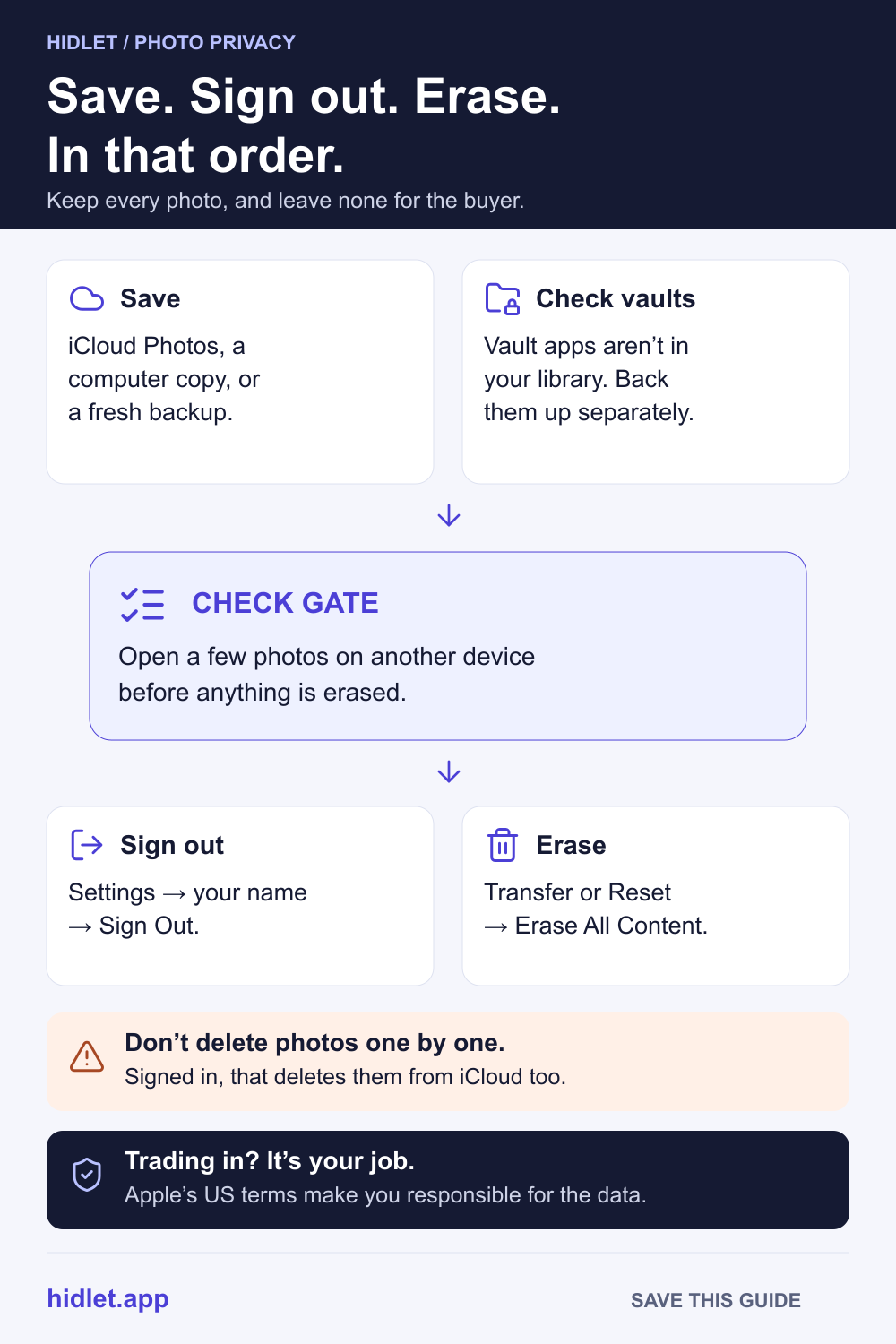
The order matters more than the steps. Save, sign out, then erase, and never delete photos one by one while iCloud is still on.

Hidlet is an iPhone app
Point your iPhone camera at the code to install. No account needed.
or text me the linkSave your photos first, with iCloud Photos, a download to a computer, or a backup. Then sign out of your Apple Account, and erase the iPhone in Settings → General → Transfer or Reset iPhone → Erase All Content and Settings. Don't delete photos one by one while you're still signed in to iCloud. Apple warns that this deletes them from iCloud and your other devices too.
The buyer is coming at six. Or the trade-in box is on the table, or your mum is getting your old iPhone. You want two things at once: every photo safe somewhere, and none of them left on the phone.
The trap is doing it in the wrong order. Delete your photos one at a time while you’re signed in, and iCloud takes them off your other devices too. Erase without saving first, and the only copy is gone. This guide takes you through it in order: save, check the private stuff, sign out, erase, and what to do if the phone already left.
Before: make sure every photo has a second home
Pick one, or two to be safe.
iCloud Photos. If it’s on, your library already lives in iCloud. Check it has finished. In Photos, tap Collections and look at your account picture in the top-right corner: a partly filled blue circle means photos are still uploading. Tap your account to see when it last synced. If it hasn’t, keep the phone on Wi-Fi and power until it does.
A copy on a computer. On a Mac, the Photos app can export your photos. You can also download them from iCloud.com. Apple notes that copies saved from a Shared Album may not be full resolution.
A fresh backup. Make an iCloud backup in Settings → your name → iCloud → iCloud Backup → Back Up Now, or back up to a Mac or PC and tick Encrypt local backup. Apple says iCloud Backup doesn’t include your photos when iCloud Photos is on, because they’re already in iCloud. So with iCloud Photos on, a backup alone doesn’t save your library to a second place.
Then open a few photos on the computer or on iCloud.com. Seeing them there beats trusting a progress bar.
Before: the private photos
The Hidden album. If you use iCloud Photos, hidden photos are in iCloud with the rest of your library. Nothing extra to do, but check they’re there afterwards.
A photo vault app. This is where people lose things. A vault app’s photos aren’t in your Photos library, so iCloud Photos doesn’t save them. Check the vault’s own backup, or export what you need, and make sure you have its password and any recovery phrase written down. How to Move a Photo Vault to a New iPhone Without Losing Photos has the full checklist.
Photos in other apps. Messages attachments, files in Files, pictures saved inside other apps. If they matter, back them up or move them before you erase.
Don’t delete photos one by one
It feels responsible to clear the phone before you hand it over. Don’t.
Apple warns that when you’re signed in to iCloud, deleting items by hand removes them from iCloud servers and all your connected devices, photos included. Delete your camera roll on the old iPhone, and it disappears from your new one too.
You don’t need to delete anything by hand. Erasing the phone removes everything on it, and Apple says it doesn’t delete your content from iCloud.
Hand-over: sign out, then erase
- Sign out of your Apple Account. Go to Settings → your name, scroll down and tap Sign Out. Choose Erase this iPhone or Sign Out But Don’t Erase; either is fine, since you’ll erase next. Enter your passcode or Apple Account password and confirm. If you’re asked which account to sign out of, tap Sign out of iCloud and Store. Apple says signing out turns off Find My on the phone, and that your information stored in iCloud stays in iCloud.
- Erase it. Go to Settings → General → Transfer or Reset iPhone → Erase All Content and Settings. Enter your passcode or Apple Account password if asked, and tap Continue. If you use an eSIM, Apple lets you choose whether to erase it; when you’re selling, erase it.
- Wait for the Hello screen. When it appears, the phone is ready for its next owner.
Why erasing is enough: Apple’s Platform Security guide says erasing the phone wipes a key that the whole file system depends on, which “renders all files cryptographically inaccessible”. Apple also says erasing turns off Activation Lock, so the buyer can set it up.
Trading in? Apple’s US trade-in terms say you’re responsible for backing up and deleting the data on your trade-in device, and that Apple isn’t liable for it. Do the steps above before you send it.
Giving it to family? Apple says each family member needs their own Apple Account; if you share one, your data gets mixed together. Erase it, and let them sign in with their own account. My Private Photos Show Up on the Family iPad or Mac shows what happens when an account is shared.
After: if the phone already left without being erased
- Erase it from Find My. Open the Find My app, tap Devices, tap the iPhone’s name, tap Erase, and follow the steps. Because the phone isn’t lost, Apple says not to enter a phone number or message. If it’s offline, it erases next time it connects. You can do the same on iCloud.com/find.
- Remove it from your account. Once it’s erased, tap Remove This Device, then Remove.
- Change your Apple Account password. Apple suggests this so the new owner can’t delete your information from iCloud.
| Step | Where | Done when |
|---|---|---|
| Photos saved | iCloud Photos, a computer or a backup | You’ve opened a few on another device |
| Vault apps saved | The vault’s own backup or export | You have the recovery details written down |
| Signed out | Settings → your name → Sign Out | Find My is off |
| Erased | Settings → General → Transfer or Reset iPhone | The “Hello” screen shows |
| Removed from account | Find My or iCloud.com | The phone isn’t in your device list |
Next time, keep private photos out of the library
Selling a phone is when you find out where your photos actually live. Photos in your library go wherever your Apple Account goes. A vault keeps the private ones separate.
Hidlet keeps them in encrypted vaults outside your photo library, each opened by a pattern you draw. With encrypted backup on, each vault is copied to your own iCloud, encrypted on the phone first, so erasing the old iPhone doesn’t lose it. On the new phone, install Hidlet and draw your pattern. That needs iCloud Keychain on; if it’s off, the vault’s 9-word recovery phrase brings it back. Hidlet is available on the App Store.
Frequently asked questions
Does erasing my iPhone delete my photos from iCloud?
No. Apple says your content won't be deleted from iCloud when you erase your device. Deleting photos by hand while you're signed in is what removes them from iCloud and your other devices.
Do I need to delete my photos before I erase the iPhone?
No, and it's safer not to. Erase All Content and Settings removes photos along with everything else, and Apple's Platform Security guide says erasing makes every file cryptographically inaccessible.
Does Apple erase my iPhone when I trade it in?
Don't count on it. Apple's US trade-in terms say you are responsible for backing up and deleting the data on your trade-in device, and that Apple isn't liable for it.
I'm giving my iPhone to a family member. Can I just leave it signed in?
Don't. Apple says each family member should use their own Apple Account; if you share one, your data gets mixed together. Sign out and erase it, then they set it up with their own account.
Sources
- Apple Support — What to do before you sell, give away, or trade in your iPhone or iPad
- Apple iPhone User Guide — Sell, give away, or trade in your iPhone (iOS 27)
- Apple iPhone User Guide — Sync photos and videos with iCloud (iOS 27)
- Apple Support — Download and save copies of your iCloud photos and videos
- Apple iPhone User Guide — Back up iPhone (iOS 27)
- Apple Support — What does iCloud back up?
- Apple Support — Hide photos and videos on your iPhone, iPad, or Mac
- Apple Support — Sign out of your Apple Account and iCloud
- Apple iPhone User Guide — Erase iPhone (iOS 27)
- Apple Support — Restore your iPhone or iPad to factory settings
- Apple Platform Security — Data Protection
- Apple iPhone User Guide — Remove a device in Find My (iOS 27)
- Apple — Trade In terms and conditions
- Apple Support — Make sure that each family member has their own Apple Account
Save this guide