How to Permanently Delete Photos From Your iPhone
Delete only moves a photo to a 30-day bin. Here is where the other copies sit, and how to clear each one you can reach.

Hidlet is an iPhone app
Point your iPhone camera at the code to install. No account needed.
or text me the linkDeleting a photo only moves it to Recently Deleted, where it stays for 30 days. To remove it for good, open Photos → Collections → Recently Deleted, tap View Album, tap Select, choose the photo, tap the More button, then tap Delete. Copies in Messages, Shared Albums and older backups need their own steps, and copies on other people's phones are out of your reach.
You deleted a photo. It’s gone from your Library, so it feels done. It isn’t, quite. Your iPhone keeps deleted photos for a month in case you change your mind, iCloud keeps your other devices in step, and a photo you sent or shared has copies that never went through your Photos app at all.
This guide covers where a deleted photo goes first, the copies that deleting doesn’t reach, the steps to clear the ones you can, and how to keep the next private photo out of your library from the start.
Where a deleted photo goes first
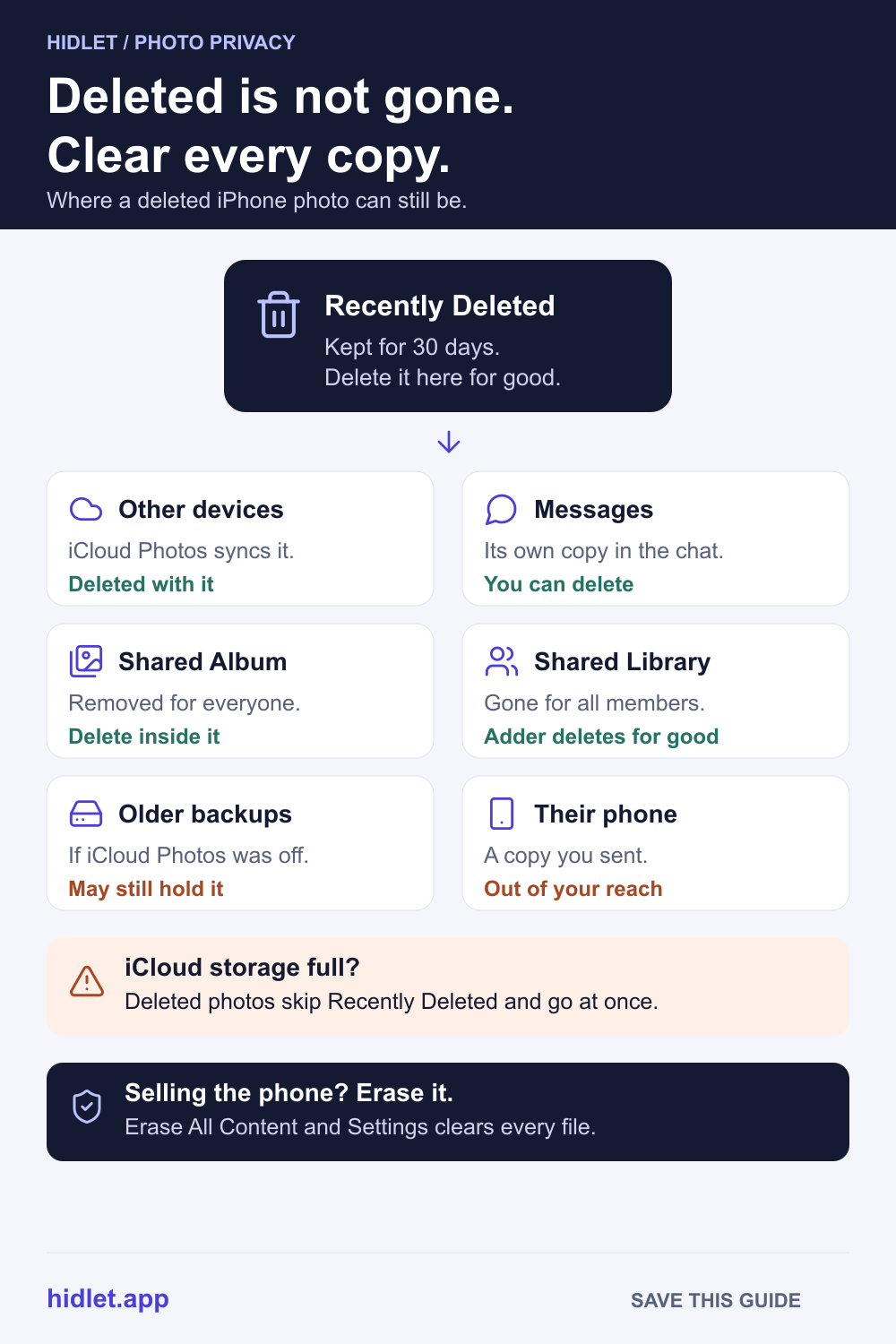
When you delete a photo or video in Photos, Apple moves it to Recently Deleted. It stays there for 30 days. After that, Apple says it is permanently removed from your iPhone, iCloud and your other devices. Until then, you can recover it, or delete it for good yourself.
Recently Deleted is locked by default, the same way the Hidden collection is. It opens with Face ID, Touch ID or your passcode. The switch is Use Face ID (or Touch ID, or Passcode) in Settings → Apps → Photos, and turning it off unlocks both collections. Leave it on.
Three things change the 30-day rule:
- iCloud Photos. If it’s on, Apple says deleting a photo on your iPhone deletes it on every device signed in to the same Apple Account that has iCloud Photos turned on. The same goes for deleting it on iCloud.com, which has its own Recently Deleted album. Deleting on a family iPad that shares your account counts too, as our article on family devices explains.
- A full iCloud. Apple says that if you’re over your iCloud storage limit, your device removes deleted photos and videos straight away. They skip Recently Deleted and can’t be recovered.
- Duplicates. Merging duplicates in Collections → Utilities → Duplicates keeps one copy and moves the others to Recently Deleted. They wait there like any other deleted photo.
Hidden photos are no different. Hiding a photo keeps it in your library, as How to Hide Photos on iPhone explains, so deleting it later sends it to Recently Deleted like any other.
The copies deleting doesn’t reach
Recently Deleted handles your library. Other copies live in other places, and each has its own rules.
| Where the copy is | Removed when you delete from Photos? | What to do |
|---|---|---|
| Your other devices and iCloud.com | Yes, with iCloud Photos on | Nothing extra; empty Recently Deleted once |
| A Messages conversation | Apple’s Photos steps don’t say | Delete it in Messages, then from Messages’ Recently Deleted |
| A Shared Album | Apple doesn’t say | Delete it inside the album |
| An iCloud Shared Photo Library | Removed for everyone | Only the person who added it can delete it for good |
| An older iCloud or computer backup | No | Only if iCloud Photos (or Messages in iCloud) was off; see below |
| Someone else’s phone | No | Out of your reach |
Messages. A photo you sent or received lives in that conversation too. Messages has its own delete steps and its own Recently Deleted, where deleted messages and attachments wait up to 30 days. Apple says deleting in Messages affects only your iPhone and your other Apple devices on the same account.
Shared Albums. The person who created a Shared Album can delete any photo in it; everyone else can delete only what they added. Apple says a deleted item is removed from the album on all participants’ devices, and that photos deleted from a shared album are deleted immediately, so save a copy first if you need one. But photos someone already saved to their own library stay there, even if the whole album is deleted.
iCloud Shared Photo Library. Anyone in a Shared Library can delete a photo, and it disappears for everyone. Apple says only the person who added it can delete it for good or recover it from Recently Deleted, and that person gets a notification when it’s deleted.
Backups. If you use iCloud Photos, Apple says your photos aren’t part of your daily iCloud Backup, so this doesn’t apply. If iCloud Photos is off, Apple says iCloud Backup may include the photos in your library, and that a backup to a computer includes almost all of your iPhone’s data (but not photos already in iCloud Photos). A photo sent or received in Messages can also be in an iCloud backup if Messages in iCloud is off. A backup made before you deleted a photo can therefore still hold it, until that backup is replaced or deleted. If you’re thinking of switching iCloud Photos off, How to Turn Off iCloud Photos Without Losing Your Photos covers what changes and the order that keeps your originals.
Other people’s phones. Apple says plainly that you can’t delete messages or attachments for anyone else. A photo you sent is theirs to keep or delete.
How to delete a photo for good
Do these in order. Steps 3 and 4 only matter if the photo was ever sent or shared.
- Delete the photo in Photos. Select it and tap the trash button. With iCloud Photos on, it’s deleted on all your devices that use iCloud Photos.
- Empty it from Recently Deleted. In Photos, tap Collections, then Recently Deleted (below Utilities). Tap View Album and unlock it. Tap Select, choose the photo, tap the More button, then tap Delete, and confirm. Apple says that once you delete it here, you can’t get it back. To clear everything at once, Apple’s support page describes Delete All in the same menu.
- Clear the copies in Messages. Open the conversation and tap the contact or group icon at the top. Tap Photos, tap Edit, then Select, choose the photo and tap Delete. Then go back to your list of conversations, tap the Filter button, then tap Recently Deleted. Select the conversation, tap the Delete button, then tap Delete, so it doesn’t wait there for 30 days.
- Remove it from shared spaces. Open any Shared Album you posted it to and delete it there. In a Shared Library, if someone else added the photo, they are the one who can delete it for good from Recently Deleted.
- Think about older backups. This only matters if iCloud Photos is off. You can delete a device’s iCloud backup in Settings → your name → iCloud → Storage (or Manage Account Storage) → Backups: tap the device, tap Turn Off and Delete from iCloud, then Turn Off and Delete. That removes the whole backup, not one photo, and turns iCloud Backup off. Then turn Back Up This iPhone on again in Settings → your name → iCloud → iCloud Backup and tap Back Up Now.
If you’re selling or giving away the iPhone, erasing it does more than any of this. Apple’s Platform Security guide says Erase All Content and Settings erases the key that protects every file, which “renders all files cryptographically inaccessible”. It’s in Settings → General → Transfer or Reset iPhone. Don’t delete photos by hand while you’re signed in to iCloud: Apple says that removes them from iCloud and all your connected devices. Sign out first, then erase. How to Move a Photo Vault to a New iPhone Without Losing Photos covers the order that loses nothing.
Keep the next private photo out of your library
Every copy above exists because the photo started in Photos: synced, shared, backed up, and parked for 30 days after you deleted it. For photos you already know are private, the simplest fix is not to keep them in your library at all. As Can Other Apps See Your Hidden Photos on iPhone? explains, apps you allow to see your whole library can see what’s in it.
A vault keeps photos in its own storage instead. Hidlet works this way. You import photos into an encrypted vault that opens only with a pattern you draw, and afterwards Hidlet offers to delete the originals from Photos. Nothing is deleted unless you choose it, and Hidlet asks for Photos permission only then. Afterwards, check Recently Deleted and empty it, as in step 2 above. Photos you take with Hidlet’s own camera go straight into the open vault and never reach your camera roll, so there’s nothing to clean up afterwards.
A vault can’t call back a photo you’ve already sent. If someone else has a copy, Hidlet doesn’t change that. And if you later delete the vault app itself, read Does Deleting a Photo Vault App Delete Your Photos? first. Hidlet is available on the App Store.
Frequently asked questions
How long do deleted photos stay on my iPhone?
Apple says deleted photos and videos stay in Recently Deleted for 30 days, then are permanently removed from your iPhone, iCloud and your other devices. One exception, if you are over your iCloud storage limit, deleted photos are removed straight away and can't be recovered.
Does deleting a photo on iPhone delete it from iCloud?
If you use iCloud Photos, yes. Apple says a photo you delete on one device is deleted on every device signed in to the same Apple Account that has iCloud Photos turned on, and on iCloud.com, which has its own Recently Deleted album.
Can I get a photo back after deleting it from Recently Deleted?
Apple says that once you delete a photo from Recently Deleted, you can't get it back. If you are looking for a photo that isn't in Recently Deleted, Apple suggests checking the Recovered collection.
Can I delete a photo I already sent to someone?
Not from their device. Apple says you can't delete messages or attachments for anyone else. Undo Send works only within 2 minutes, only for iMessage, and the message stays if the other person's device runs older software.
Sources
- Apple iPhone User Guide — Delete or hide photos and videos on iPhone (iOS 27)
- Apple Support — Delete photos on your iPhone or iPad
- Apple Support — Manage your iCloud storage on your Apple device
- Apple iCloud User Guide — Delete and recover photos and videos on iCloud.com
- Apple iPhone User Guide — Use iCloud Shared Photo Library (iOS 27)
- Apple iPhone User Guide — Contribute to a shared album (iOS 27)
- Apple Support — What does iCloud back up?
- Apple Support — About backups for iPhone, iPad and iPod touch
- Apple iPhone User Guide — Back up iPhone (iOS 27)
- Apple Support — What to do before you sell, give away, or trade in your iPhone or iPad
- Apple iPhone User Guide — Delete messages and attachments (iOS 27)
- Apple iPhone User Guide — Unsend or edit messages (iOS 27)
- Apple Platform Security — Data Protection
Save this guide