Do Hidden Photos Show Up in Shared Albums on iPhone?
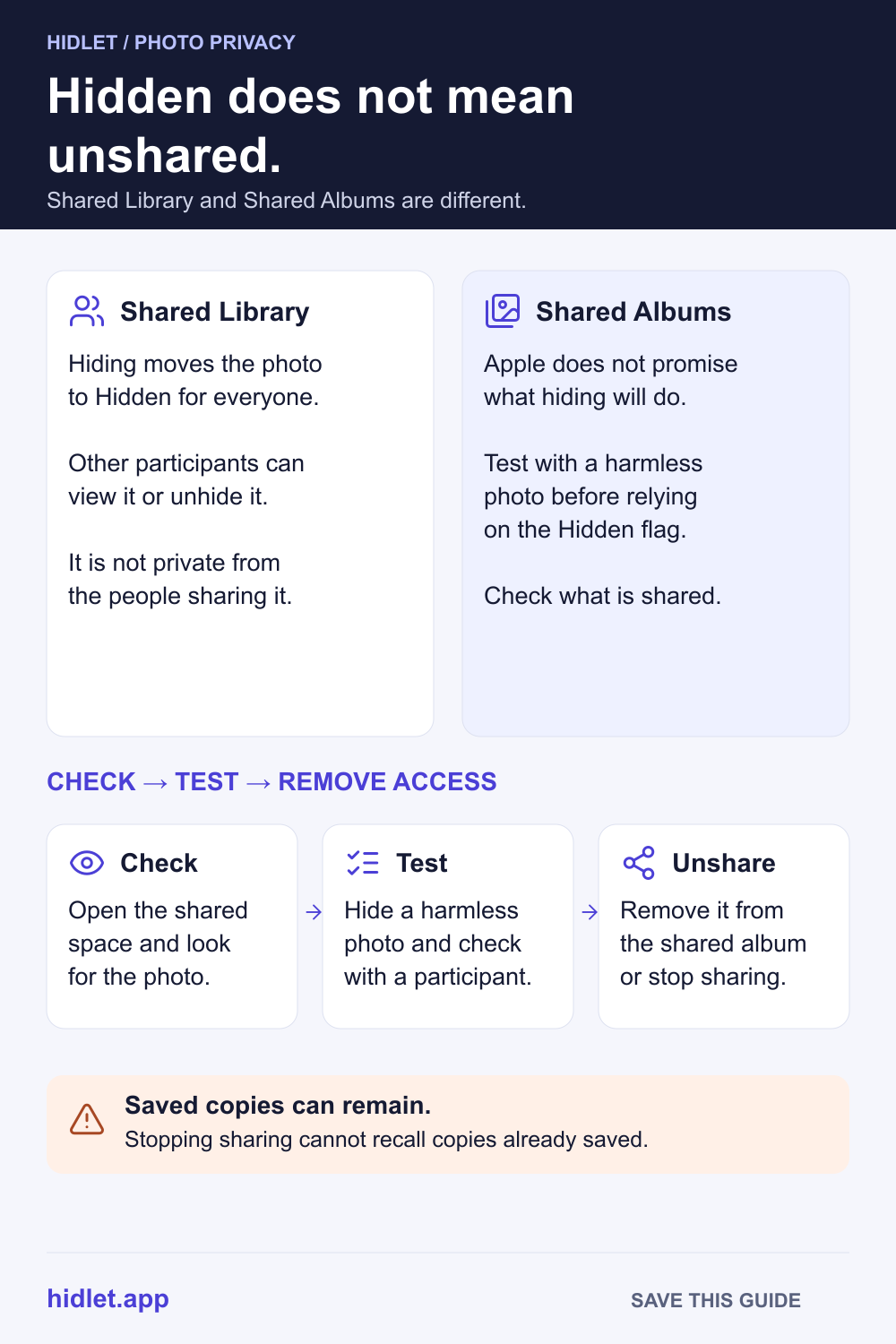
Hidden hides a photo on your own devices. Apple doesn't promise it keeps a photo out of a Shared Album.

Hidlet is an iPhone app
Point your iPhone camera at the code to install. No account needed.
or text me the linkHidden photos stay out of your Library, your other albums and the Photos widget, and they stay hidden on your other devices. In an iCloud Shared Photo Library, hiding a photo moves it to Hidden for everyone in the library. For Shared Albums, Apple doesn't say, so test with a spare photo before you rely on it.
You hid a few photos, then remembered the family Shared Album, or the Shared Library you set up with a partner. Are they still safe? The honest answer has three parts: Apple is clear about some things, silent about others, and a Hidden photo was never designed as a promise about sharing.
This guide covers what Apple says, what it doesn’t, and how to check your own iPhone in a couple of minutes.
What hiding a photo does
When you hide a photo, it moves to the Hidden album. Apple says it then doesn’t appear “anywhere else in Photos, like the Library, other albums, or even the Photos widget on your Home Screen.”
If you use iCloud Photos, the hiding follows you: photos you hide on one device are hidden on your other devices too. (For the steps, see How to Hide Photos on iPhone.)
All of that is about your devices. Nothing in it says what other people see.
Shared Library: hiding is shared too
An iCloud Shared Photo Library is a second library that you and the people you invite all add to. Starting or joining one needs iOS 16.1 or later.
Apple’s iCloud.com guide says that if you hide a photo in your Shared Photo Library, it moves to the Hidden album for all participants. They can view it or stop hiding it. That guide is written for iCloud.com, and Apple has no iPhone-specific page on it, but the Shared Library is an iCloud feature, so expect the same on your iPhone. Our reading: hiding there doesn’t make the photo private from the other people, it only tucks it out of sight.
Apple doesn’t describe what happens when you move an already hidden photo into or out of the Shared Library.
Shared Albums: Apple doesn’t say
We found no Apple page that says whether a Hidden photo can be added to a Shared Album, or what happens to a photo already in a Shared Album when you hide it. Apple’s Shared Albums page doesn’t mention the Hidden album.
So don’t rely on hiding to pull a photo out of a Shared Album. Behaviour can also differ between iOS versions: Apple notes that on iOS 26 and earlier, Shared Albums upload a copy of your data, and that iOS 27 adds full-resolution sharing.
How to keep a private photo out of shared spaces
-
Look at what is already shared. Open Photos, tap Collections, and check Shared Albums. If you use a Shared Library, use the profile button at the top right to switch between Both Libraries, Personal Library and Shared Library.
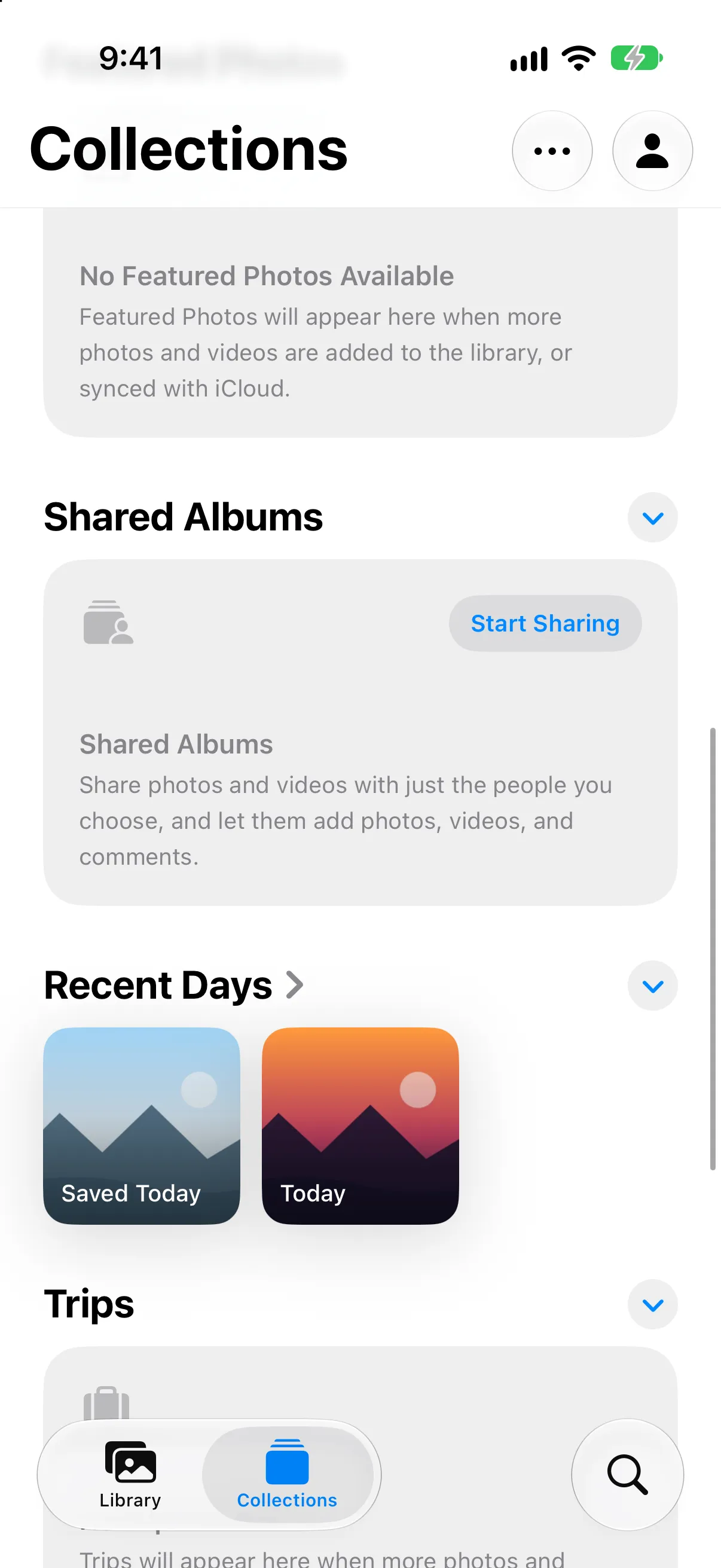
Photos → Collections, scrolled down to Shared Albums.
-
Test with a spare photo. Hide a harmless photo, then ask someone who shares the album or library whether they can still see it. This tells you more than any guess.
-
Stop sharing what shouldn’t be shared. Remove the photo from the album, or stop sharing the album. Apple says that when you stop sharing, the other person’s access to the shared album and its contents is removed. Apple’s Shared Albums page adds that people may keep photos they already saved to their own library, so stopping sharing doesn’t undo that. Apple’s Personal Safety guide has a page on managing Photos sharing settings.
-
Hide the Hidden album itself. On iOS 27, open Settings → Apps → Photos → Albums and turn off Hidden Album, so the album doesn’t show in Photos at all. On iOS 26 and earlier, the switch is Show Hidden Album, in Settings → Apps → Photos.
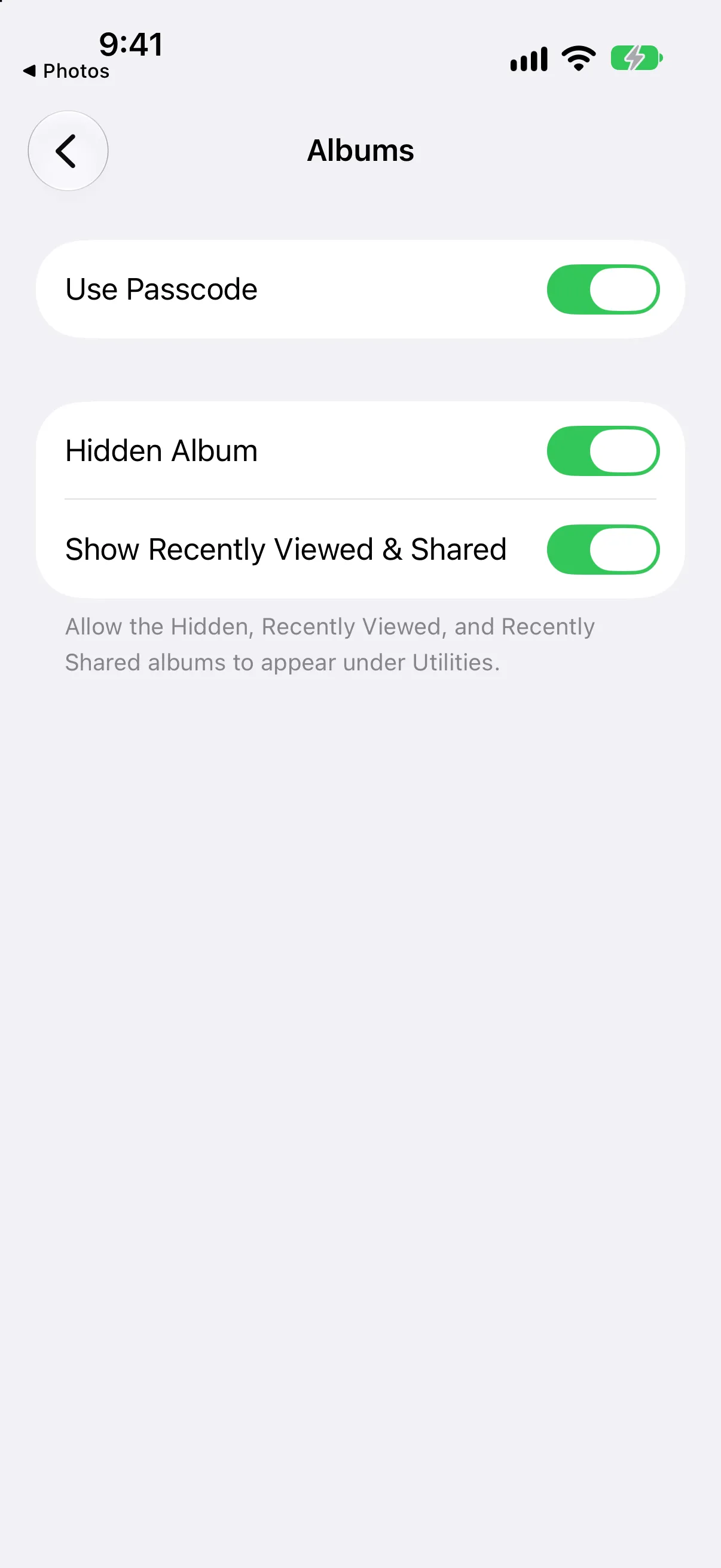
Settings → Apps → Photos → Albums on iOS 27. Turn off Hidden Album.
-
Keep truly private photos in a vault. A vault stores them outside your Photos library, so no album or Shared Library can pick them up by accident. Hidlet works this way: your photos live in an encrypted vault opened by your pattern. Nothing is shared unless you create a shared vault yourself and give someone its phrase. Hidlet is available on the App Store.
If the person you share with is the worry
If you are trying to keep photos from a partner or family member who has access to your phone or accounts, take the Shared Library and Shared Albums seriously. Apple’s Personal Safety guide explains how to check and stop Photos sharing, and local support services can help if you feel unsafe.
What Hidlet can and can’t protect
A Hidlet vault keeps photos out of Photos, so they can’t end up in a Shared Album or Shared Library by accident. It can’t un-share something you already shared, and it can’t stop someone who forces you to unlock it.
Frequently asked questions
Can I add a hidden photo to a Shared Album?
Apple's pages don't say. Hiding moves a photo out of your Library and other albums, so the safe habit is to assume you can't count on it, and test with a spare photo.
If I hide a photo in my Shared Library, who can see it?
Apple's iCloud guide says a photo you hide in a Shared Photo Library moves to the Hidden album for all participants, and they can view it or stop hiding it.
Do hidden photos stay hidden on my other devices?
Yes. With iCloud Photos on, Apple says photos you hide on one device are hidden on your other devices too.
How do I stop someone seeing photos I shared?
Stop sharing the photo or album. Apple says that removes the other person's access to the shared album and its contents.
Sources
Save this guide